

Origin Health Check
Origin Health Check monitors the number of consecutive origin failures within a specified interval. If the failures exceed the configured threshold, the corresponding origin IP will be blocked for a defined period.
Use Cases
| Scenario | Description |
|---|---|
| Multi-Origin Deployment | Ensures traffic is directed only to healthy origins, avoiding access failures. |
| High Availability & Disaster Recovery | Automatically switches to backup origins when the primary origin is unavailable, ensuring service continuity. |
| Load Balancing Optimization | Works with load balancing policies to automatically remove faulty origins, improving origin retrieval efficiency. |
Configuration Guide
Scenario 1: Global Acceleration Policy
Log in to the Security CDN console.
In the left navigation pane, go to Speed & Cache > Acceleration, then open the Global Acceleration Policy page.
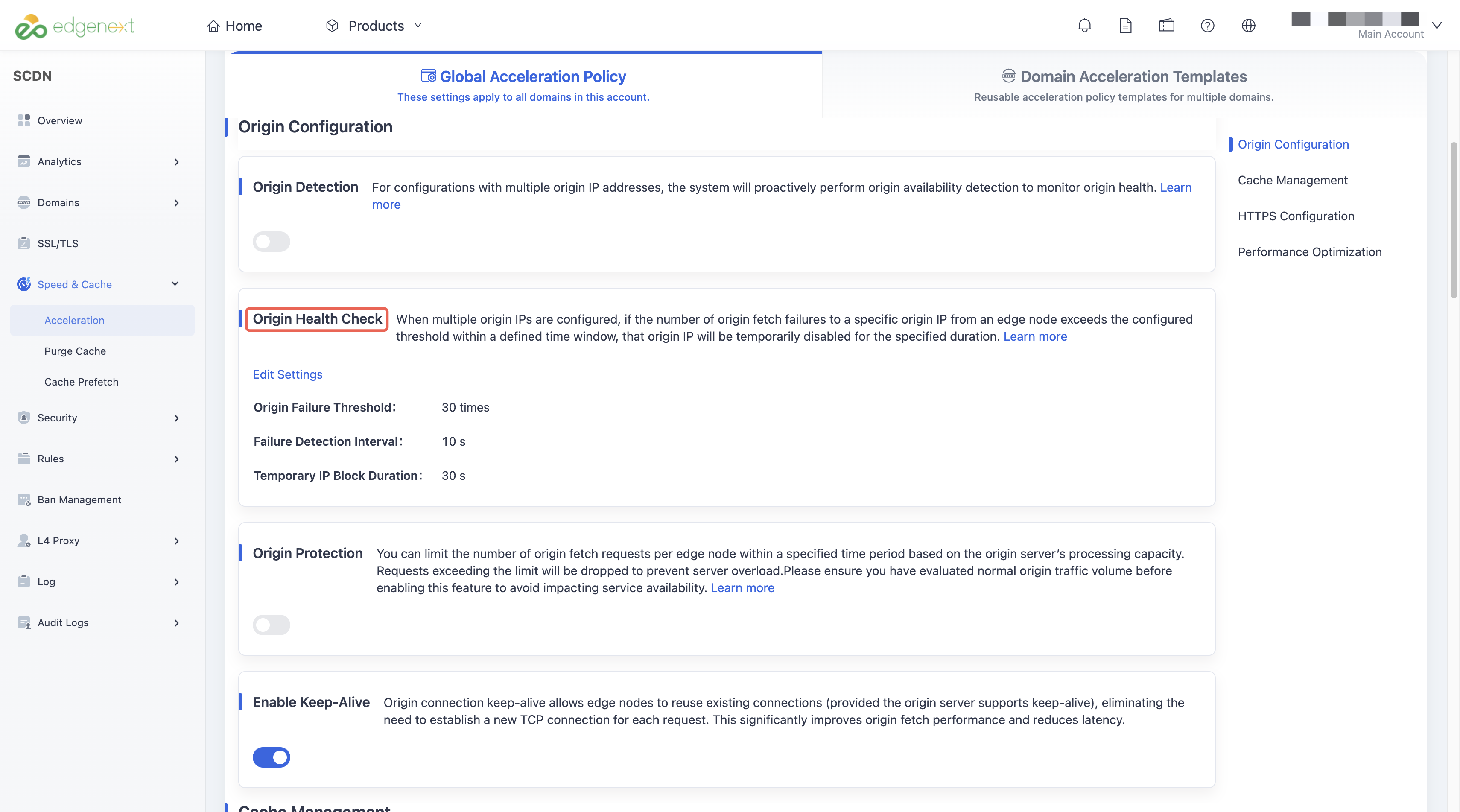
Under Origin Settings > Origin Health Check, click Edit.
In the pop-up window, configure parameters such as Origin Failure Threshold, Failure Detection Interval, and Temporary IP Block Duration.
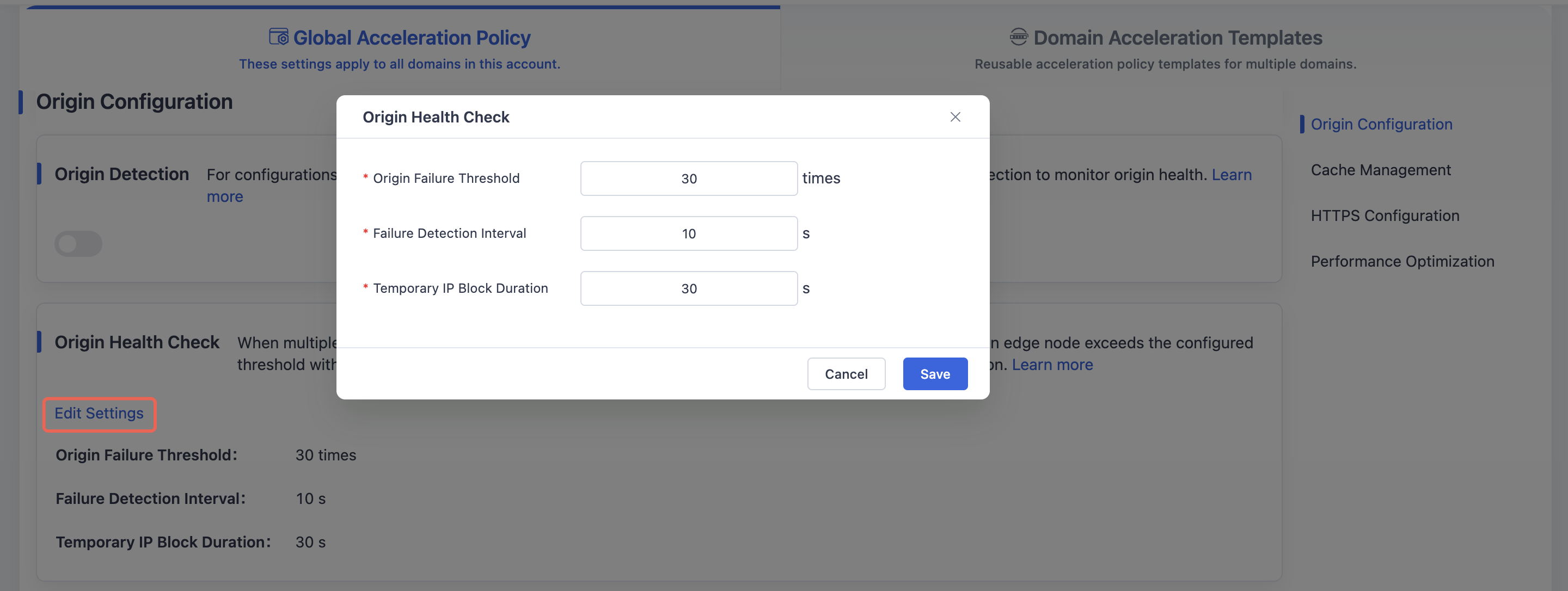
Click Save to apply the changes globally.
Scenario 2: Domain Acceleration Template
Log in to the Security CDN console.
In the left navigation pane, go to Speed & Cache > Acceleration, then open the Domain Acceleration Template page.
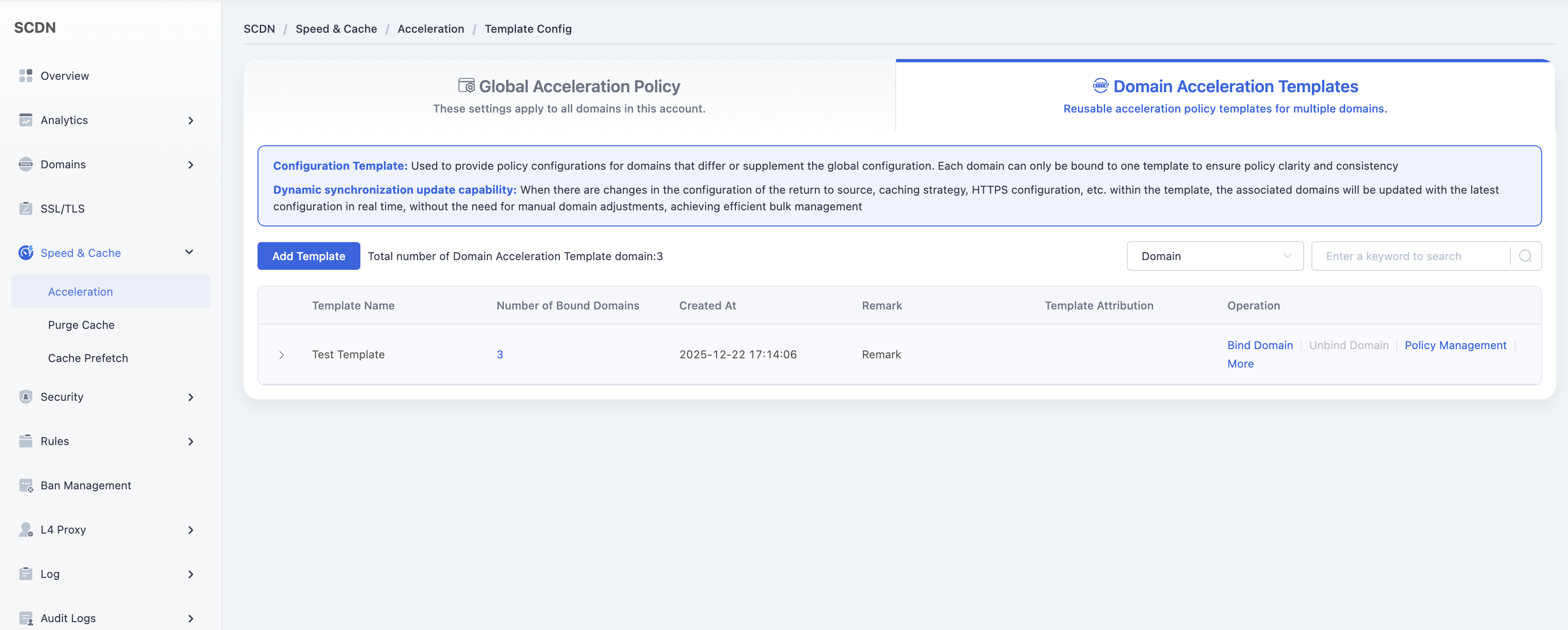
Select the desired template and click Policy Management to open its settings.
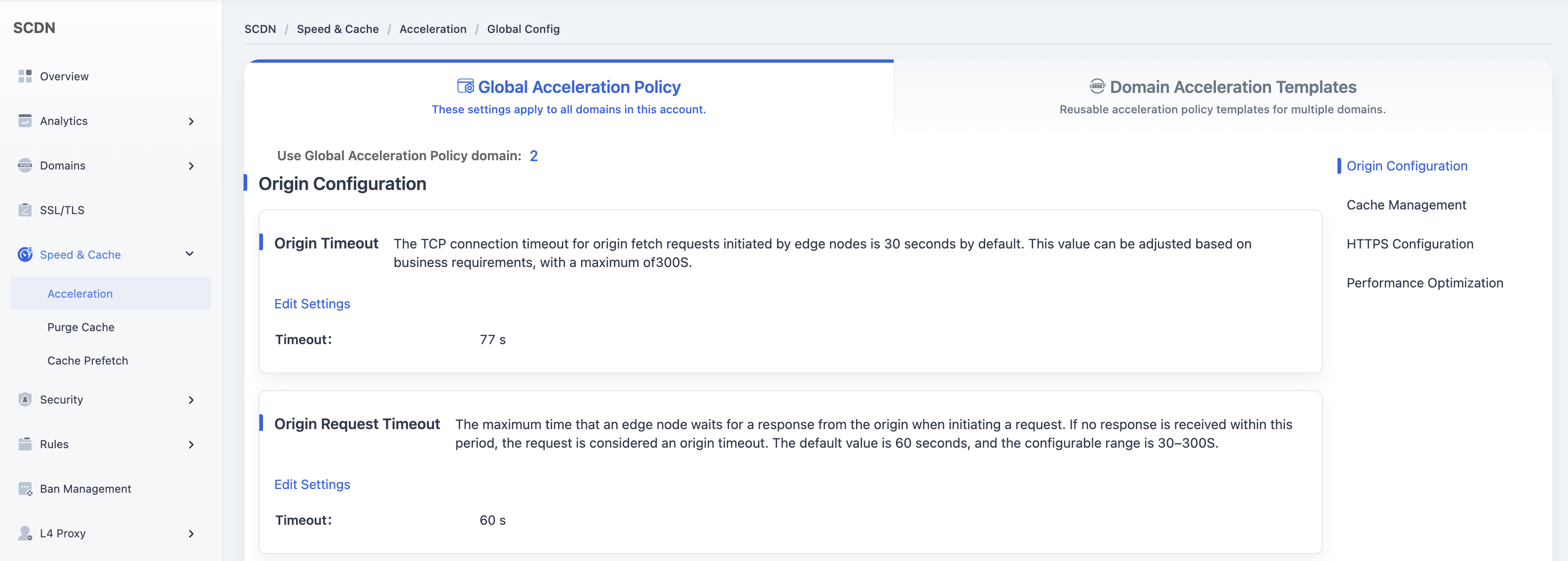
Under Origin Settings > Origin Health Check, click **Edit Settings **.
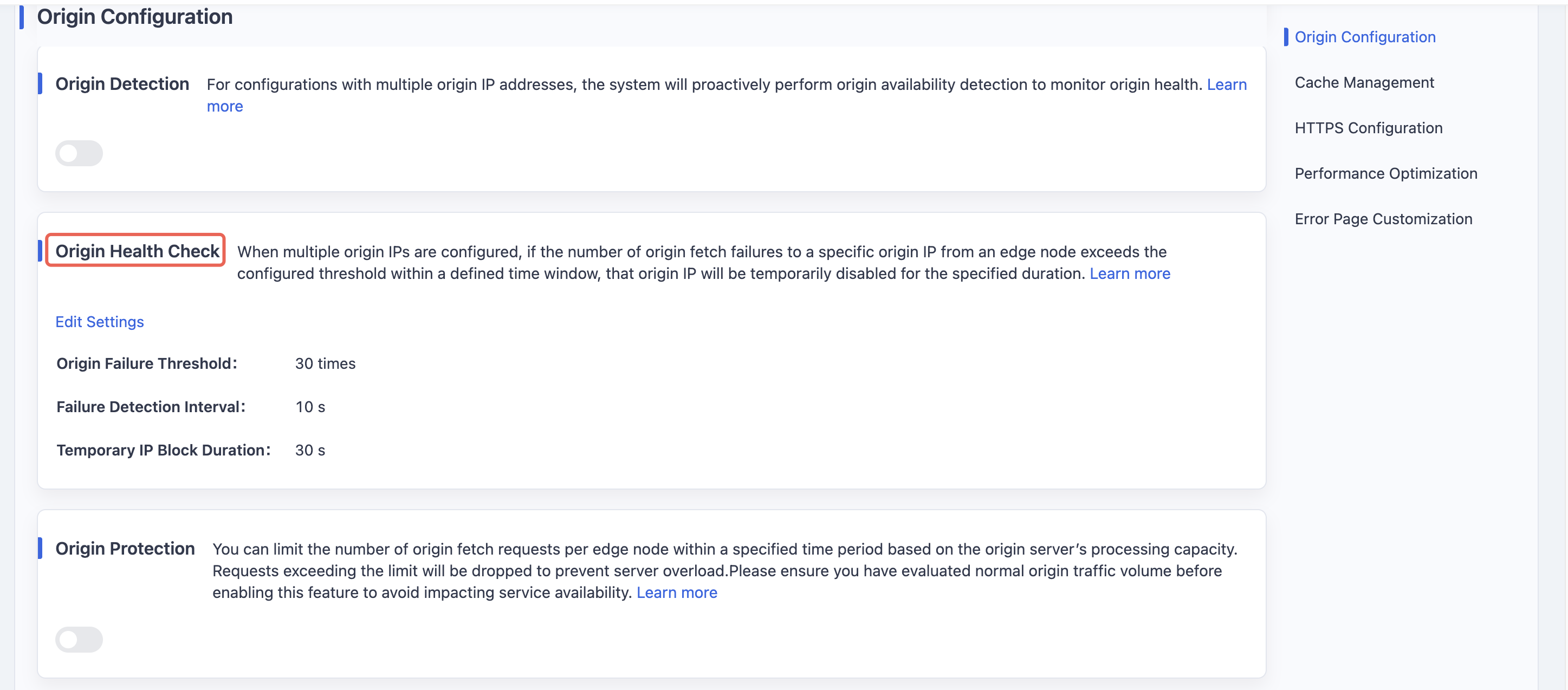
Configure parameters such as Origin Failure Threshold, Failure Detection Interval, and Temporary IP Block Duration.
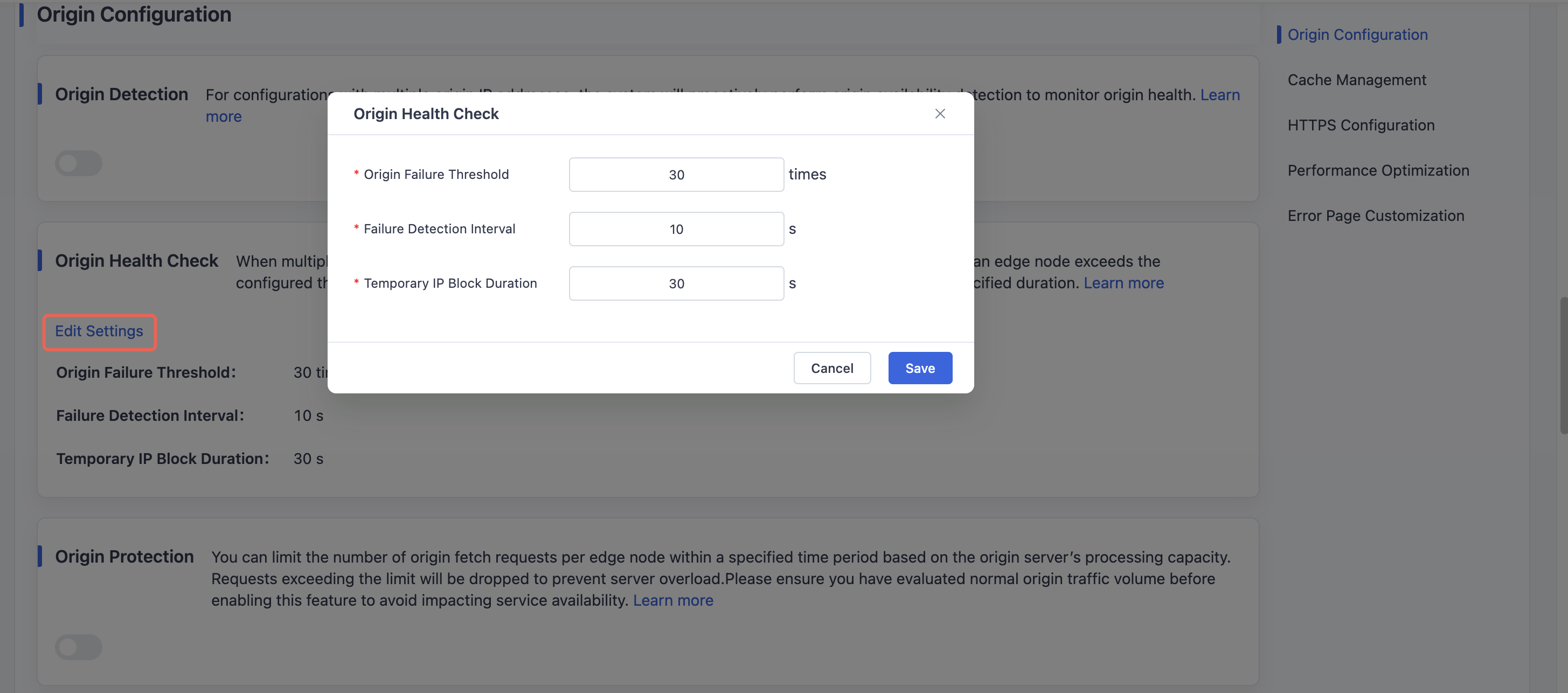
Click Save to apply the changes to the selected template.
Need help? Contact our support team at support@edgenext.com.
Back to documentation home