

WebSocket
WebSocket is a protocol for full-duplex communication over a single TCP connection. Compared to traditional HTTP requests, WebSocket offers lower latency and higher communication efficiency, making it especially suitable for real-time communication scenarios such as online chat, real-time data push, game synchronization, and more.
Use Cases
| Scenario | Description |
|---|---|
| Instant Messaging / Online Chat | In scenarios like customer service or chat systems, users can send and receive messages in real time without frequent polling to the server. |
| Real-time Push | For system notifications, weather alerts, stock prices, etc., the server can actively push data to clients to ensure timely delivery of information. |
| Live Streaming / Danmaku | During live broadcasts, real-time transmission of comments, likes, and interactions among viewers enhances the interactive experience. |
| Multi-user Collaboration | In applications such as collaborative document editing, online spreadsheets, or whiteboard tools, user operations are synchronized in real time to avoid conflicts. |
Configuration Guide
Scenario 1: Global Domain Policy
Log in to the Security CDN Console.
In the left navigation bar, select Speed & Cache, then click Acceleration to enter the Global Acceleration Policy page.
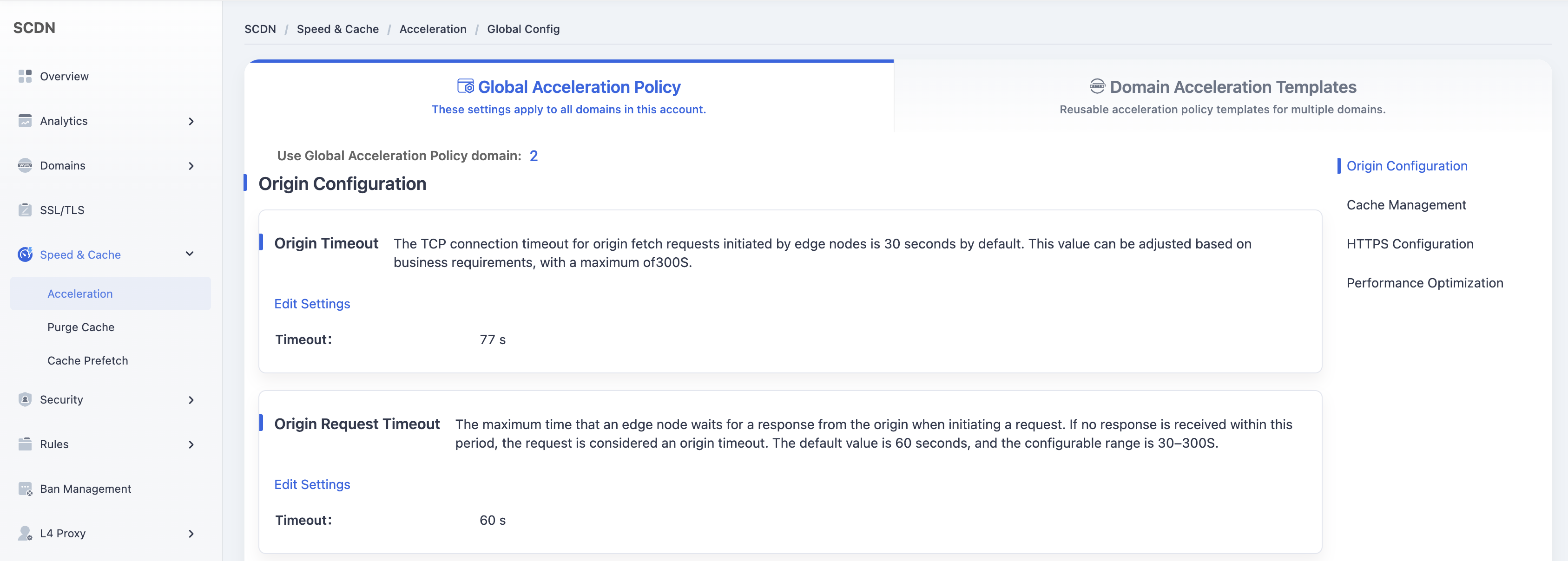
Scroll down and select the Performance Optimization - WebSocket module.
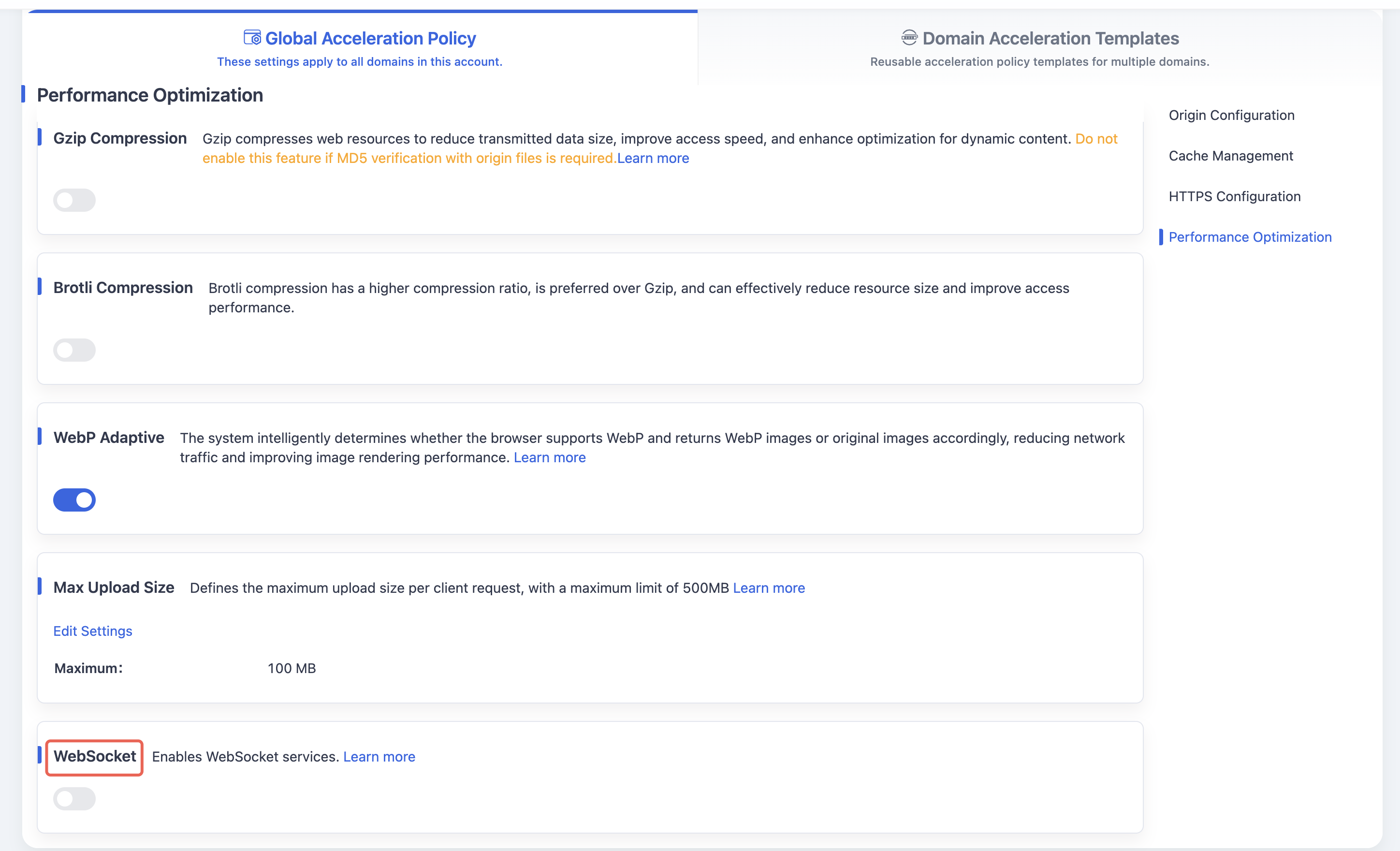
When switched to enabled, a confirmation window will pop up to enable WebSocket for secondary operations. The default maximum connection timeout is 300 seconds, with a maximum of 600 seconds.
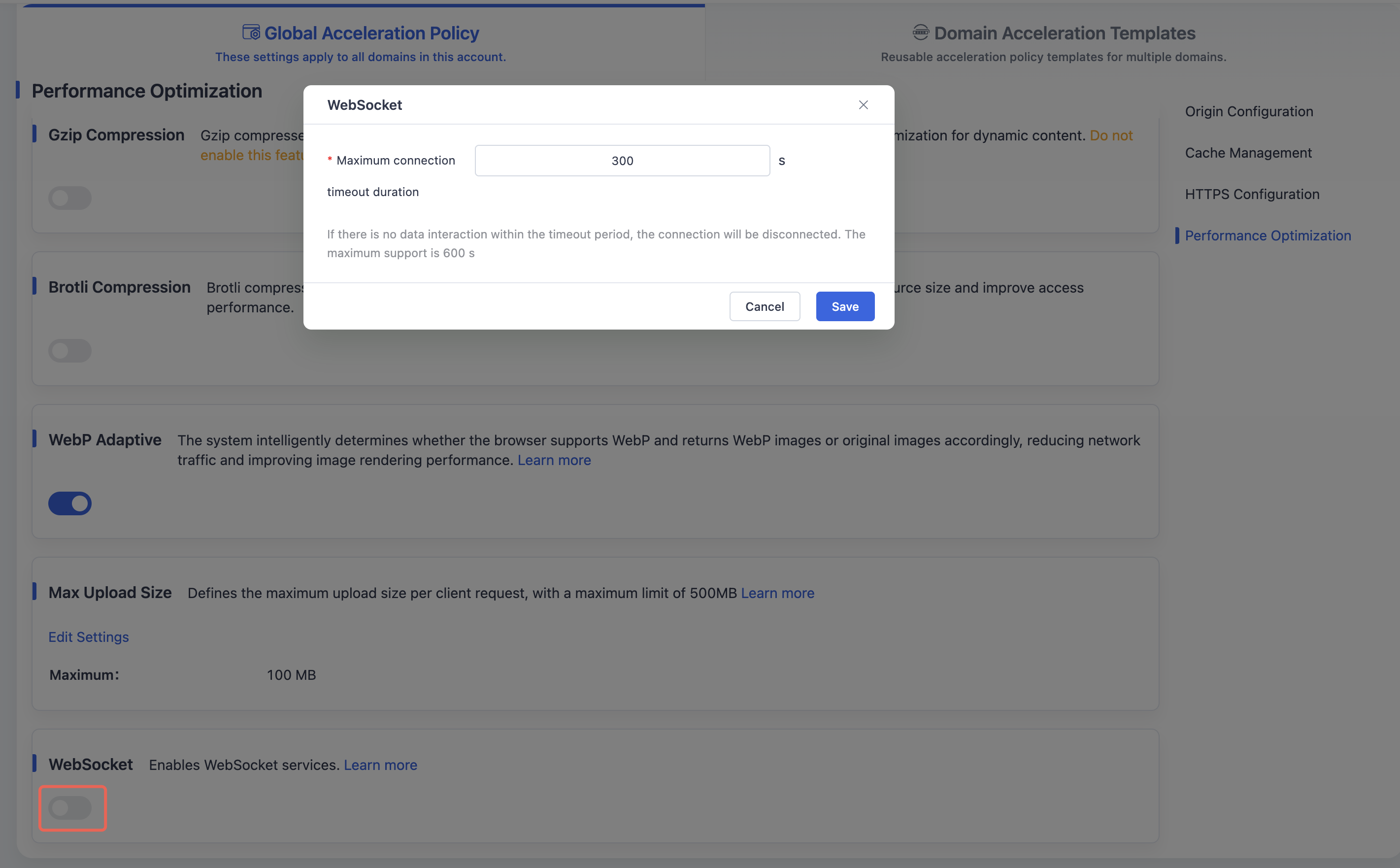
Click Save to enable WebSocket and save the global domain WebSocket configuration.
Scenario 2: Domain Acceleration Template Configuration
Log in to the Security CDN Console.
In the left navigation bar, select Speed & Cache, then click Acceleration to enter the Global Acceleration Policy page.
At the top, click Domain Acceleration Template Configuration to switch to the Speed & Network Template Management page.
In the template list, select the template you want to modify and click Policy Management in the operations column to open the template configuration page.
Scroll down to the Performance Optimization - WebSocket module.
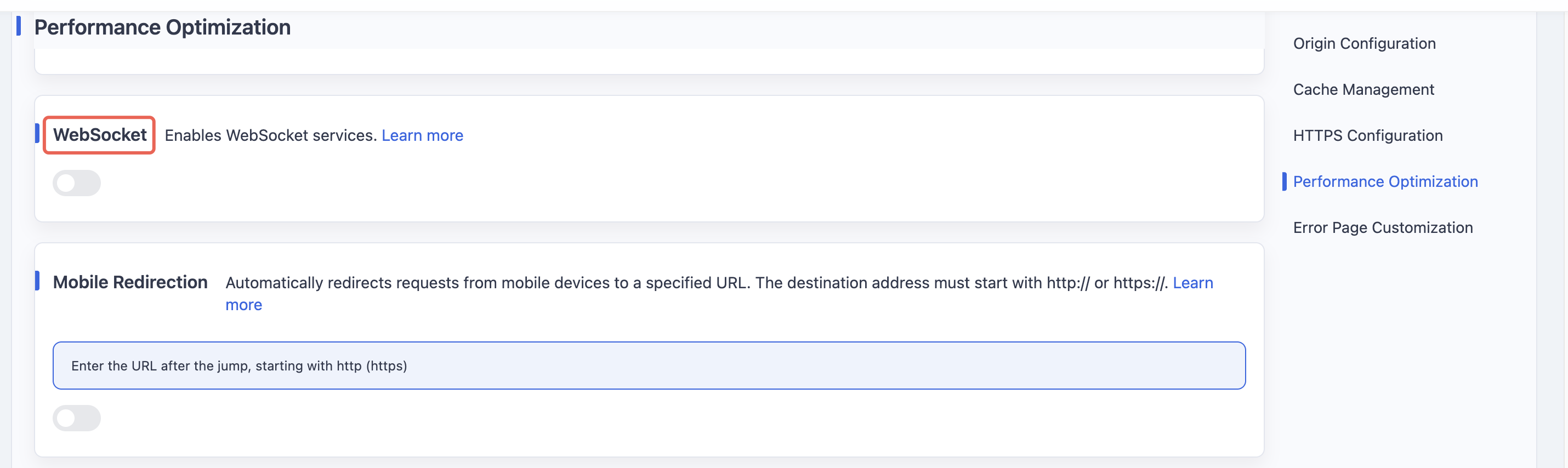
When switched to enabled, a confirmation window will pop up to enable WebSocket for secondary operations. The default maximum connection timeout is 300 seconds, with a maximum of 600 seconds.
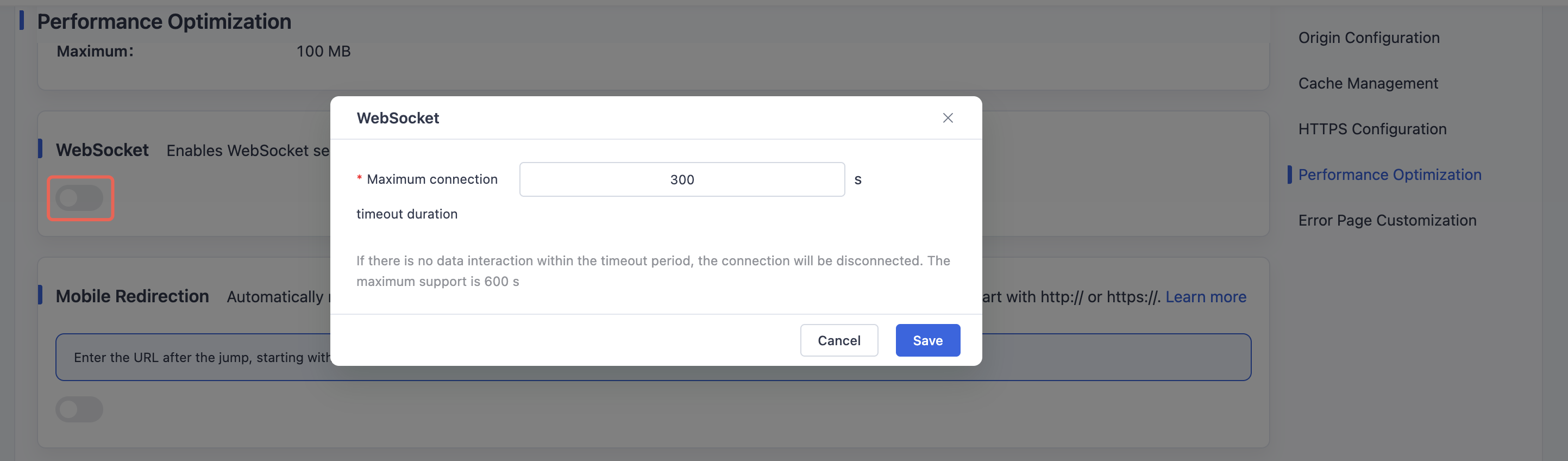
Click Save to enable WebSocket and save the WebSocket configuration for the selected template.
Need help? Contact our support team at support@edgenext.com.
Back to documentation home