

Gzip Compression
Gzip Compression is a widely supported content compression technology that significantly reduces the size of text-based resources (such as HTML, CSS, JavaScript, JSON, etc.), thereby speeding up page load times and reducing bandwidth usage.
Security CDN supports enabling Gzip compression, allowing edge nodes to dynamically compress specified file types before delivering them to clients. This feature enhances performance, especially in mobile networks and high-latency environments
Notes
- Currently supported file types for compression include:
text/html, text/plain, text/xml, text/css, text/javascript, text/x-javascript, application/xml, application/xml+css, application/rss+xml, application/javascript, application/x-javascript, application/json, image/svg+xml, image/tiff, image/x-icon, image/vnd.microsoft.icon - Common image formats (PNG, JPG, JPEG, etc.) and video formats (MP4, AVI, WMV, etc.) are typically already compressed and therefore are not subjected to Gzip compression.
- If MD5 checksum verification with the origin server files is required, please do not enable this feature.
Configuration Guide
Scenario 1: Global Domain Configuration
Log in to the Security CDN Console.
In the left navigation bar, select Speed & Cache, then click Acceleration to enter the Global Acceleration Policy page.
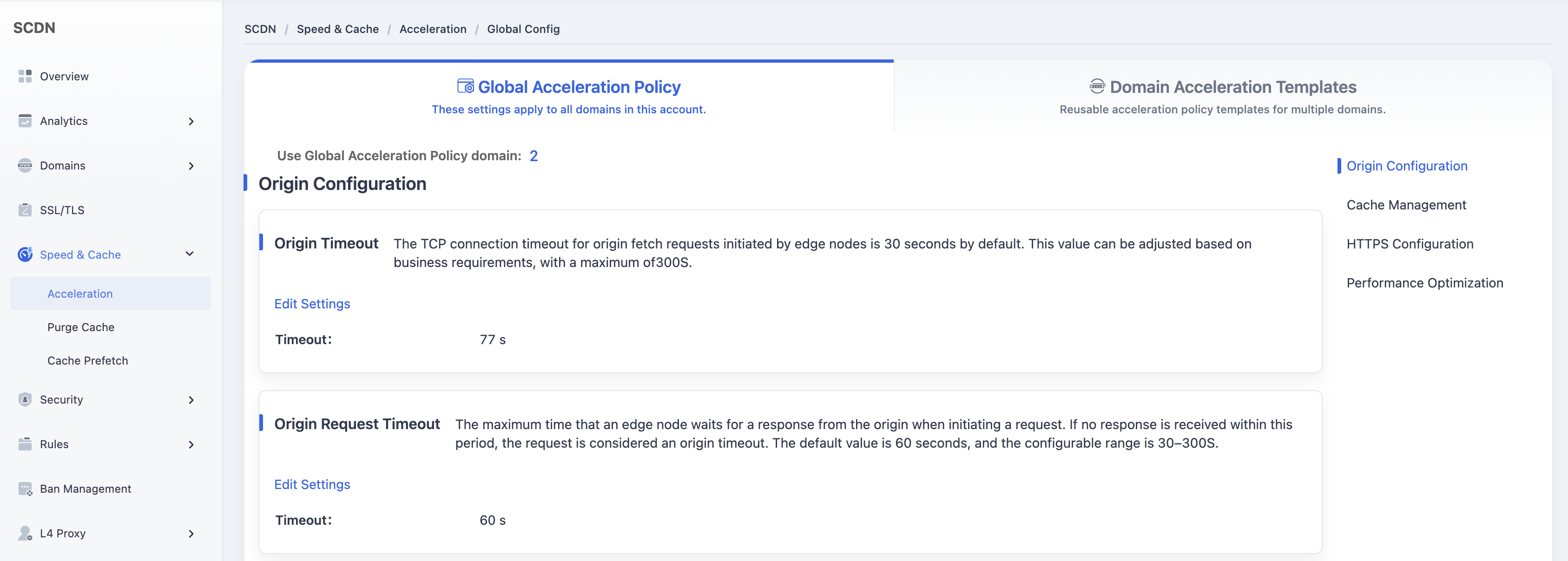
Scroll down and select the Performance Optimization - Gzip Compression module.

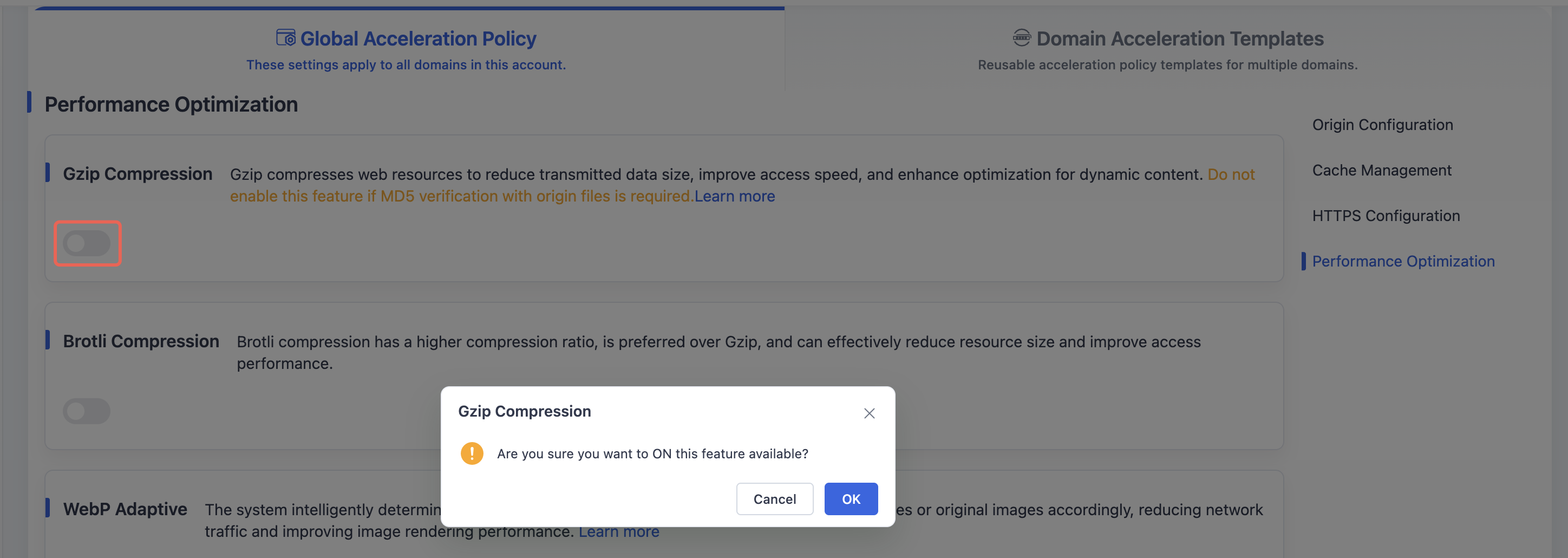
The system enables Gzip compression by default. Toggling the switch will trigger a secondary confirmation dialog to confirm enabling or disabling the feature.
Scenario 2: Domain Acceleration Template Configuration
Log in to the Security CDN Console.
In the left navigation bar, select Speed & Cache, then click Acceleration to enter the Global Acceleration Policy page.
Click Domain Acceleration Template Configuration at the top to switch to the Speed & Network Template Management page.
In the template list, select the template to adjust, then click Policy Management in the operations column to enter the template configuration page.
Scroll down to the Performance Optimization - Gzip Compression module.

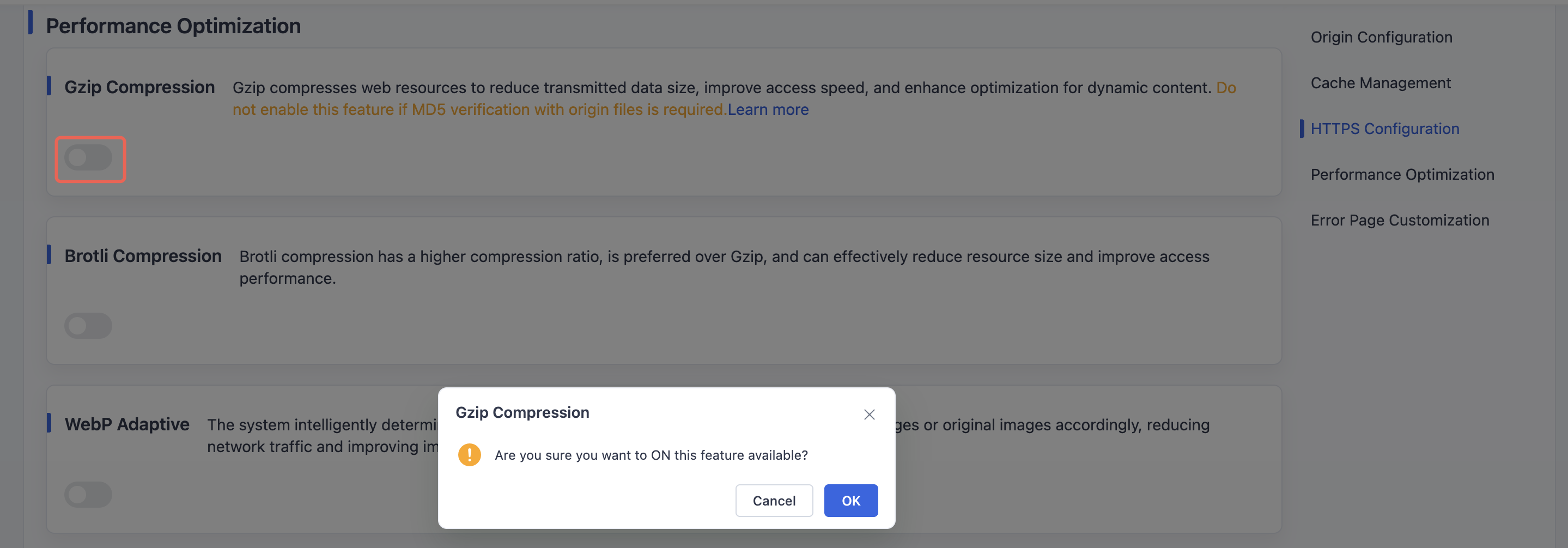
Scroll down to locate the Performance Optimization – Gzip Compression module. When toggling the switch, a confirmation dialog will appear to confirm enabling Gzip compression.
Need help? Contact our support team at support@edgenext.com.
Back to documentation home