

Configure HTTPS Certificates
Security CDN supports HTTPS certificate configuration, enabling encrypted transmission for integrated domains. This ensures that data transferred between the client and server remains protected from eavesdropping, tampering, or forgery during transit.
Certificate Configuration Options
You can configure certificates via two methods:
| Method | Description |
|---|---|
| Upload New Certificate | Upload a locally held certificate, including public certificate and private key. Suitable for users who already have a valid certificate. The system will validate the format and authenticity. |
| Use Hosted Certificate | You can select a certificate that is already managed within the SSL/TLS service. Based on the domain you are currently configuring, only certificates that match the domain will be displayed. |
Upload Certificate
| Field | Description |
|---|---|
| Certificate Name | 4 - 50 Chinese characters, English letters, digits, and special characters. The certificate name must be unique. |
| Certificate Public Key | Usually, certificates are files with extensions such as.pem or.crt. When uploading a certificate, two methods are supported: manual input or file upload. 1 . Manual Input The certificate format starts with "-----BEGIN CERTIFICATE-----" and ends with "-----END CERTIFICATE-----". 2 . Upload Files You can directly upload the certificate public - key file. |
| Certificate Private Key | Usually, certificate private keys are files with extensions such as.key or.pem. 1 . Manual Input The private - key format starts with "-----BEGIN (RSA) PRIVATE KEY-----" and ends with "-----END (RSA) PRIVATE KEY-----". 2 . Upload Files You can directly upload the certificate private - key file. Please note: If the certificate private key is password - protected, please remove the password protection first. |
Hosted Certificate
When switching to a hosted certificate, the system will automatically select a certificate that matches the domain you are configuring. You can click on the SSL/TLS section to view certificate details or apply for a free certificate on the SSL/TLS page.
Configuration Guide
Scenario 1: Deploy a Custom Certificate via the Security CDN Console
Log in to the Security CDN Console.
In the left navigation menu, go to Domains → Domain List.
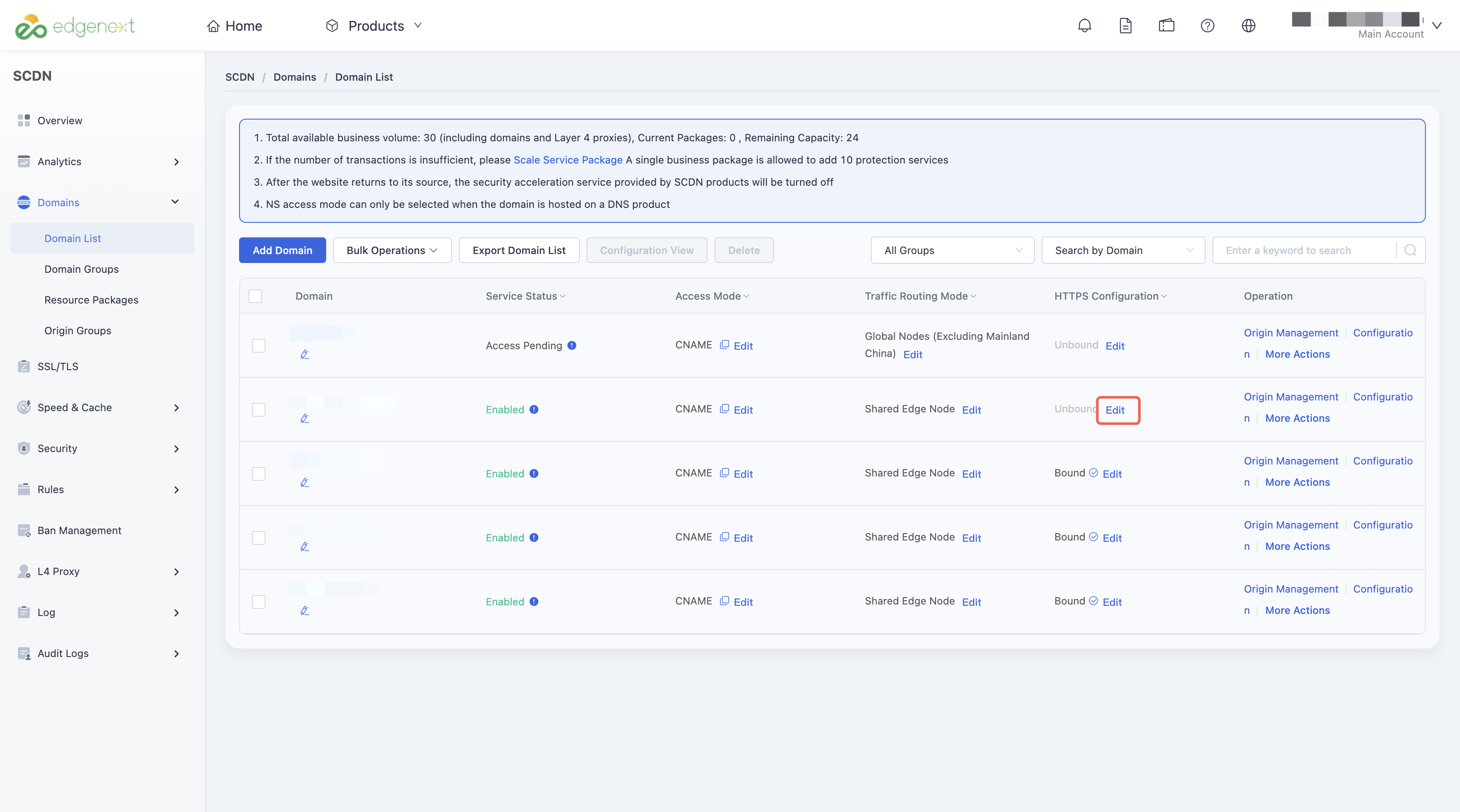
Locate the target domain and click Edit in the HTTPS column.
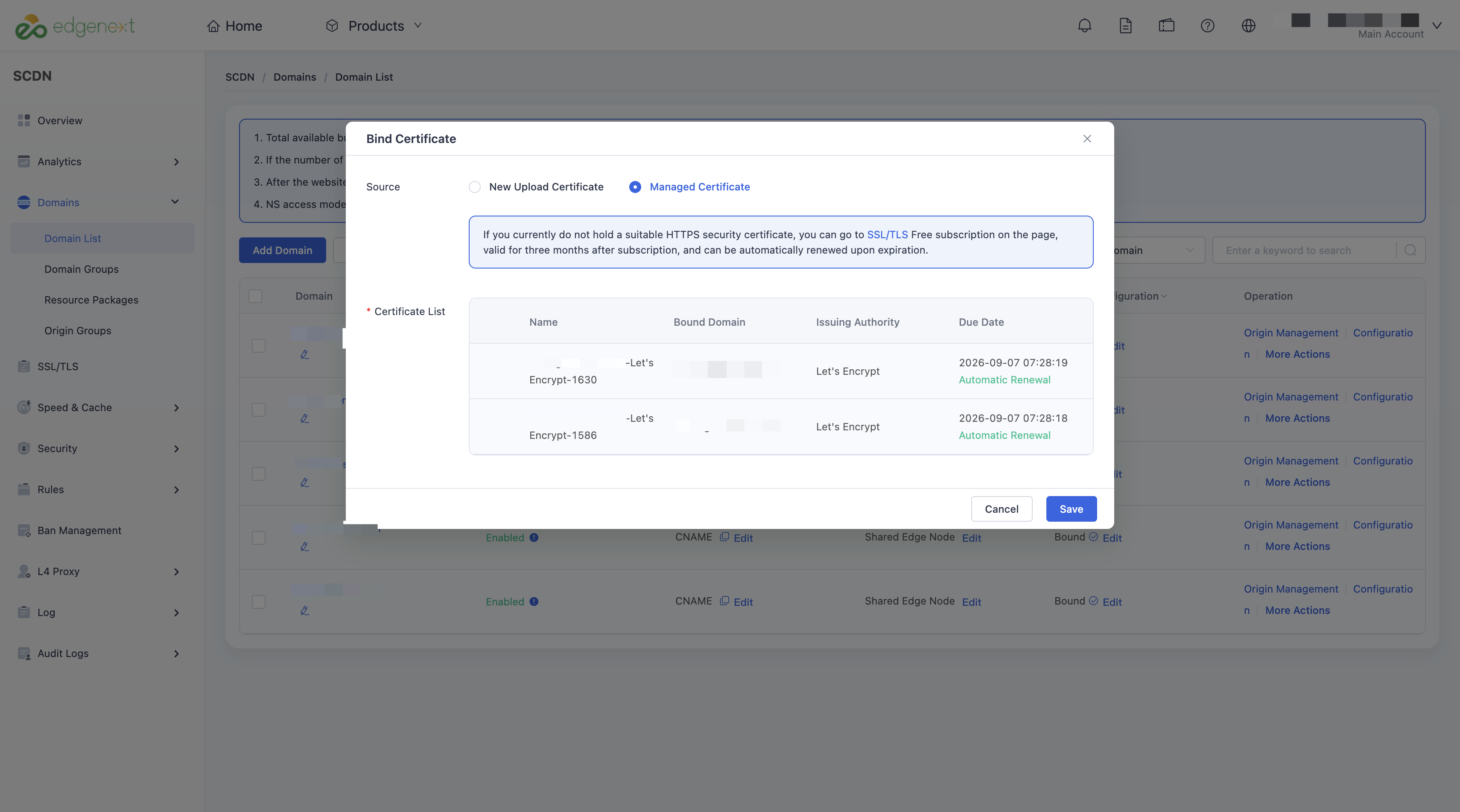
In the HTTPS certificate configuration window, choose either Upload New Certificate or Use Hosted Certificate.
- If uploading a new certificate: Provide the certificate name, public certificate, and private key, then click Confirm.
- If using a hosted certificate: The system will automatically display available certificates matching the domain. Select the desired certificate and click Save to apply the configuration.
Scenario 2: Batch Deploy Certificates for Multiple Domains via the Console
If you have a multi-domain or wildcard certificate and want to apply it to multiple domains at once without configuring each individually, the batch certificate configuration feature will streamline this process:
Log in to the Security CDN Console.
Go to Domains → Domain List.
Select multiple domains for SSL configuration.
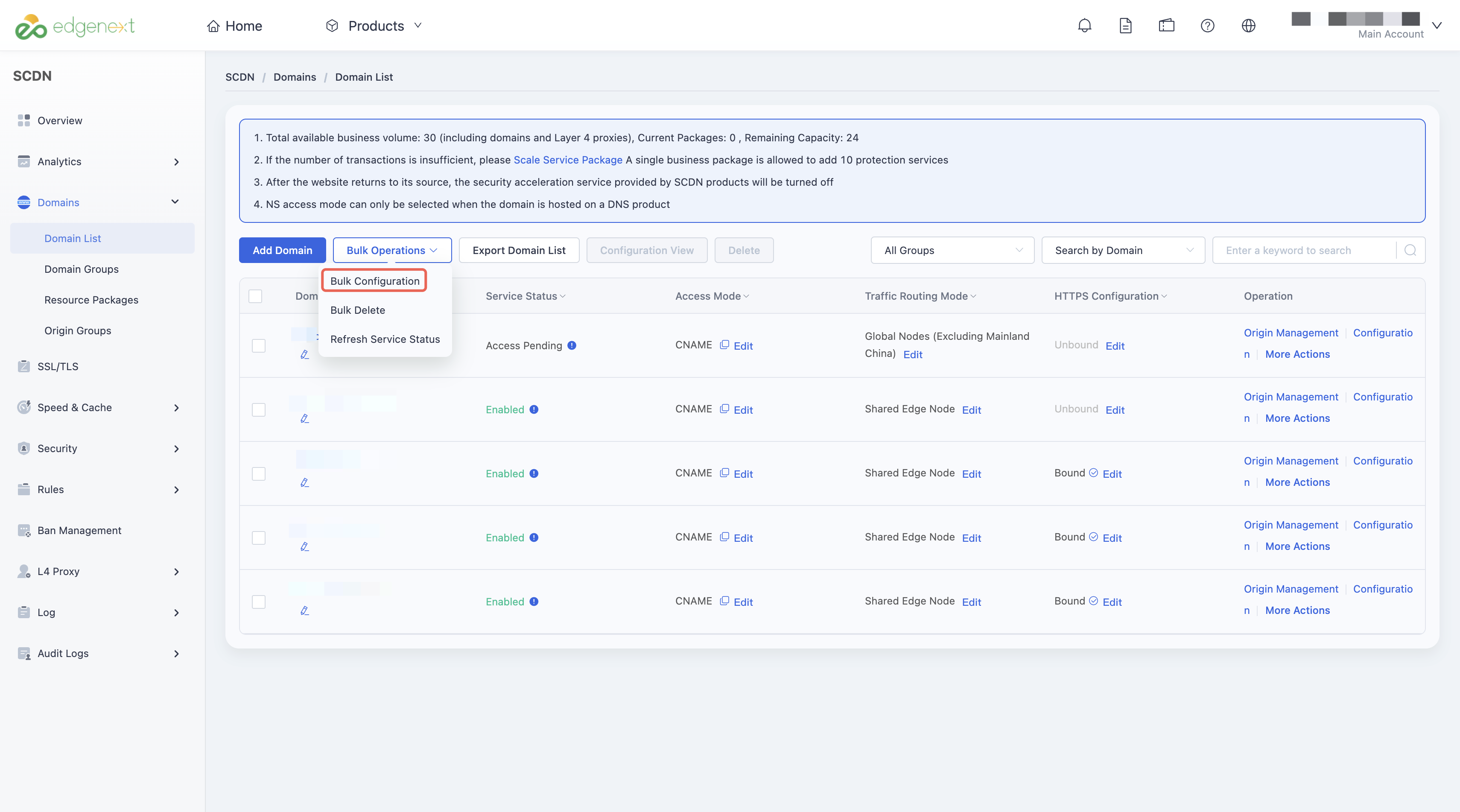
Click Batch Operations → Batch Configuration.
In the batch configuration interface, choose HTTPS Certificate, then click Modify Configuration.
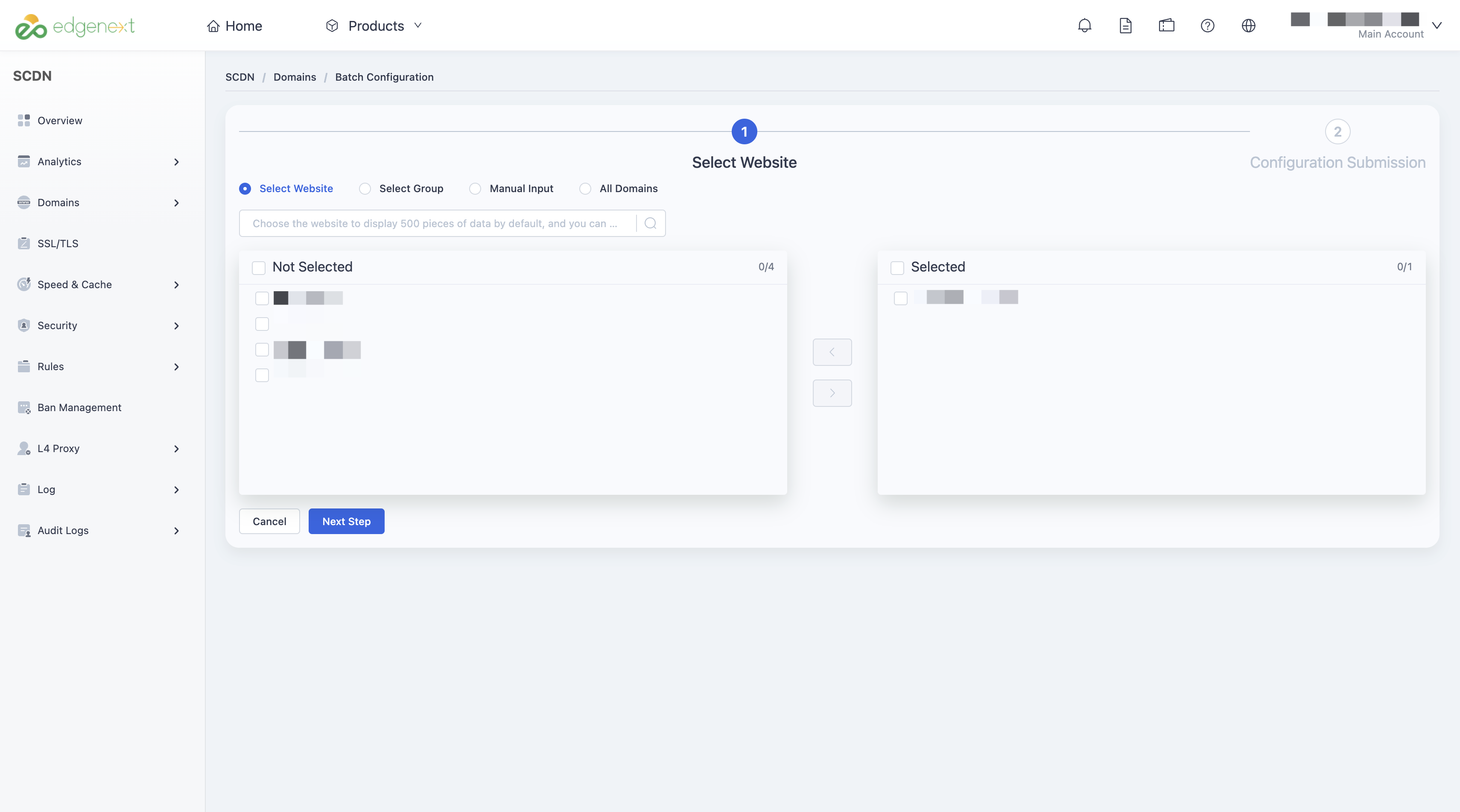
On the batch certificate configuration page, the system will display available certificates matching the selected domains.
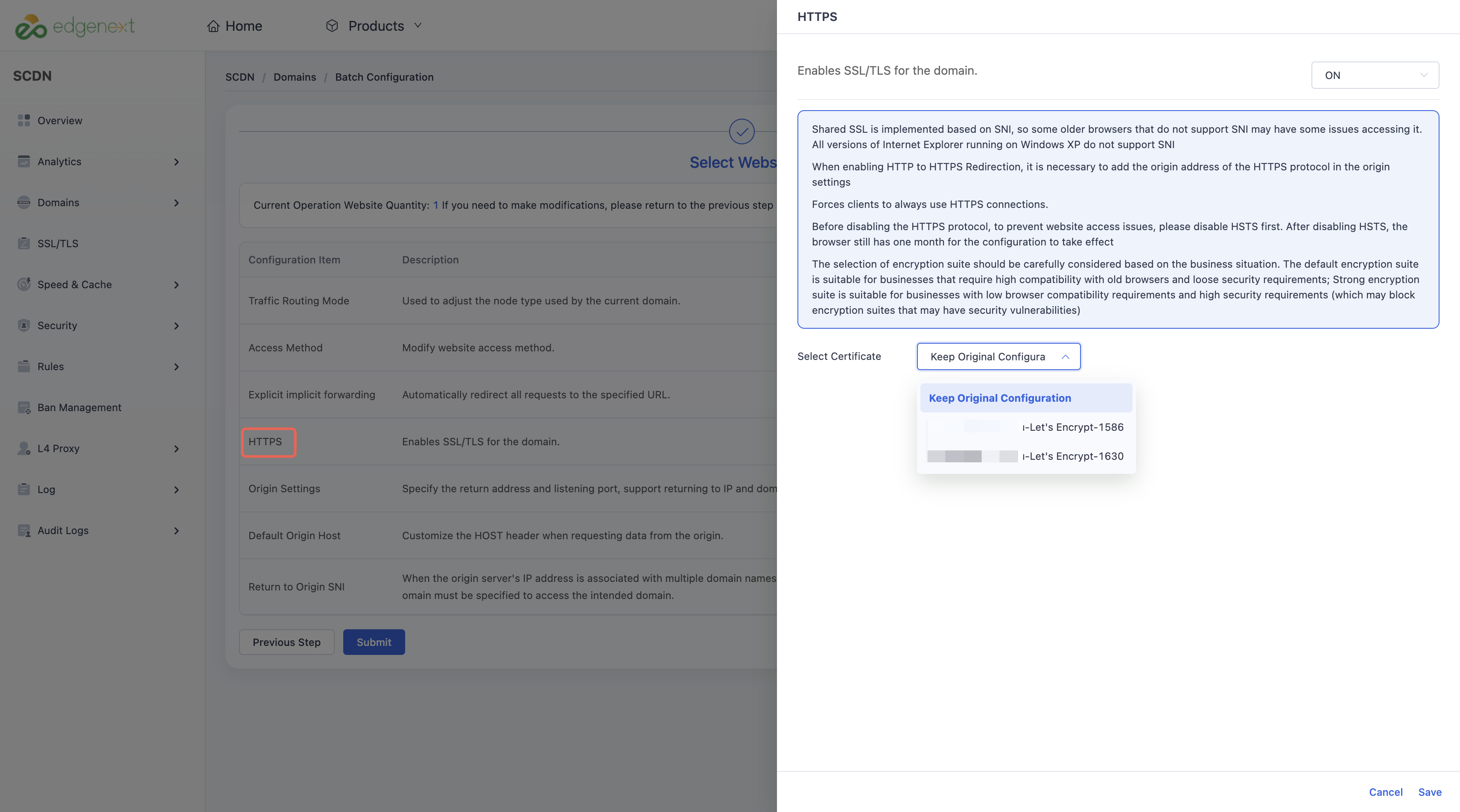
Select the appropriate certificate and click Save to complete batch deployment.
Scenario 3: Centralized Deployment via the SSL/TLS Module
You can manage and deploy certificates centrally through the SSL/TLS module:
- Log in to the Security CDN Console.
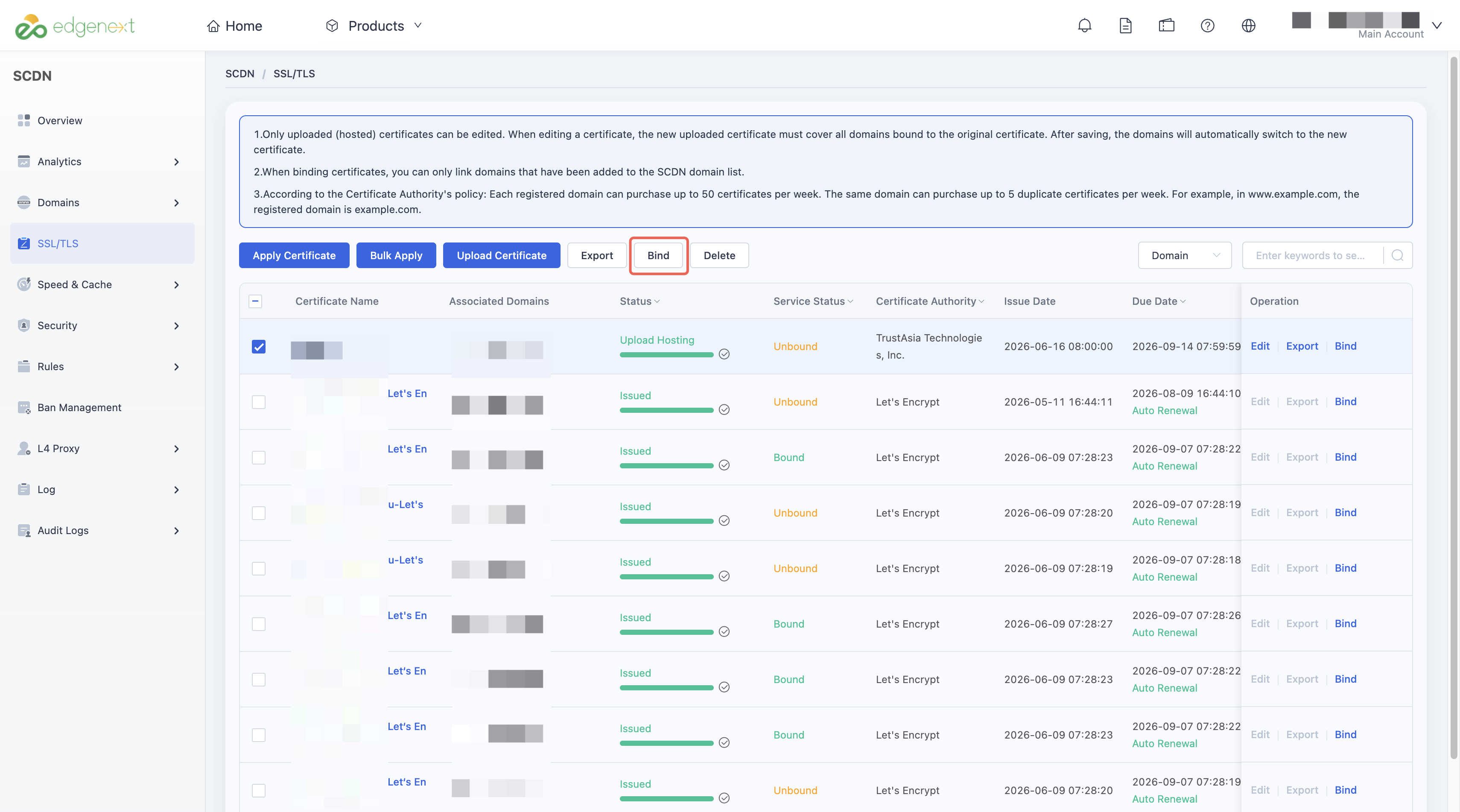
- Click SSL/TLS in the left navigation panel to access the certificate management page.
- In the certificate list, find the domain bound to the certificate.
- Click the Associate button in the actions column to deploy the certificate.
Need help? Contact our support team at support@edgenext.com.
Back to documentation home