

HTTP to HTTPS Redirection
The HTTP to HTTPS Redirection feature automatically redirects all HTTP requests from clients to HTTPS, enhancing data transmission security and preventing data from being tampered with or intercepted during transit.
Once enabled, all http:// requests will be redirected to https://, ensuring the website is always accessed through a secure, encrypted connection.
Prerequisites
Before enabling this feature, make sure that an HTTPS certificate has been successfully configured. For instructions, refer to Configure HTTPS Certificate.
Configuration Options
| Option | Description |
|---|---|
| Disabled | No forced redirection for HTTP requests. |
| Full Redirection | All HTTP requests are forcibly redirected to HTTPS. |
| Browser-Based Redirection | Only HTTP requests from browsers that support SNI are redirected to HTTPS. |
| Default Redirect Port | The default redirection port is 443. |
| Custom Redirect Port | Users may specify a custom redirect port, except for the following restricted ports: 1, 21, 22, 23, 25, 68, 135, 139, 445, 593, 873, 1068, 1111, 1434, 1871, 2121, 3208, 4331, 4334, 4444, 4510, 4557, 5152, 5153, 5154, 5554, 5800, 5900, 9995, 9996, 45050, 45060, 65432. |
Configuration Guide
Scenario 1: Global Domain Configuration
Log in to the Security CDN Console.
In the left navigation pane, go to Speed & Cache and click Acceleration to access the Global Acceleration Policy page.
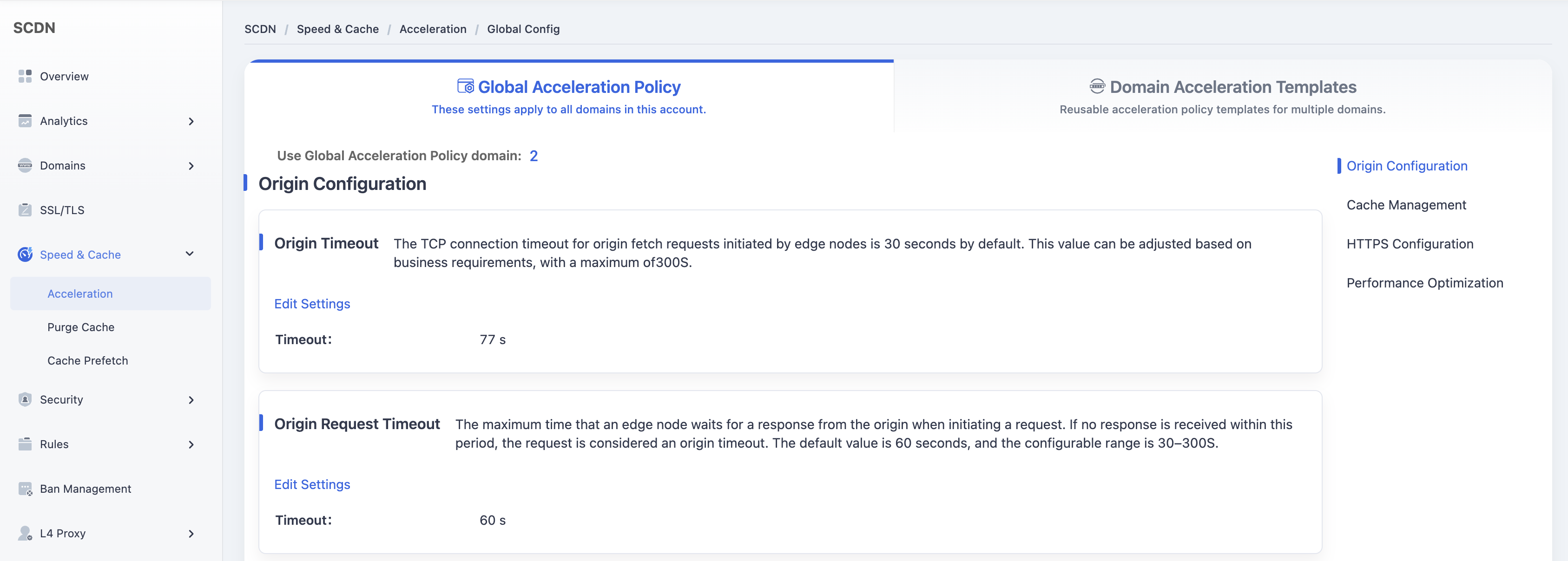
Scroll down to the HTTPS - HTTP to HTTPS Redirection module.
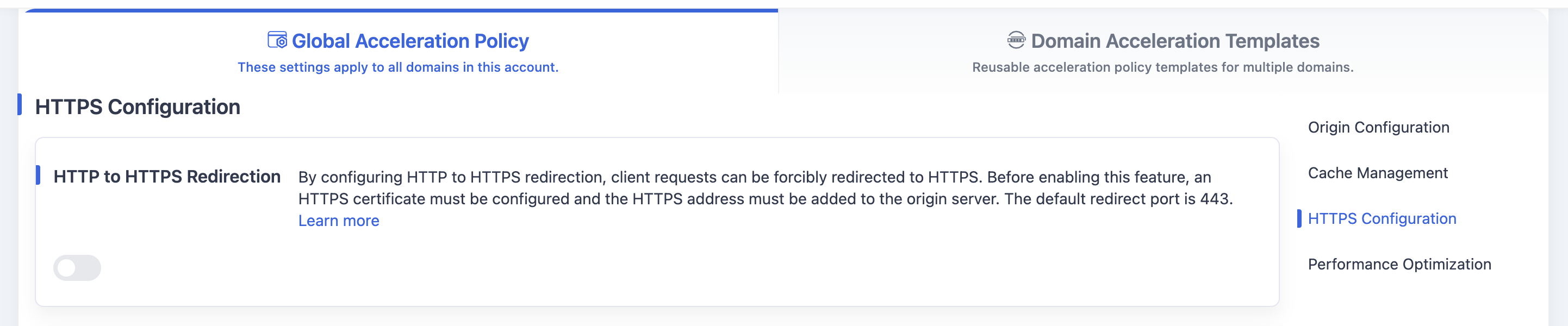
Toggle the switch to open the redirection settings dialog.
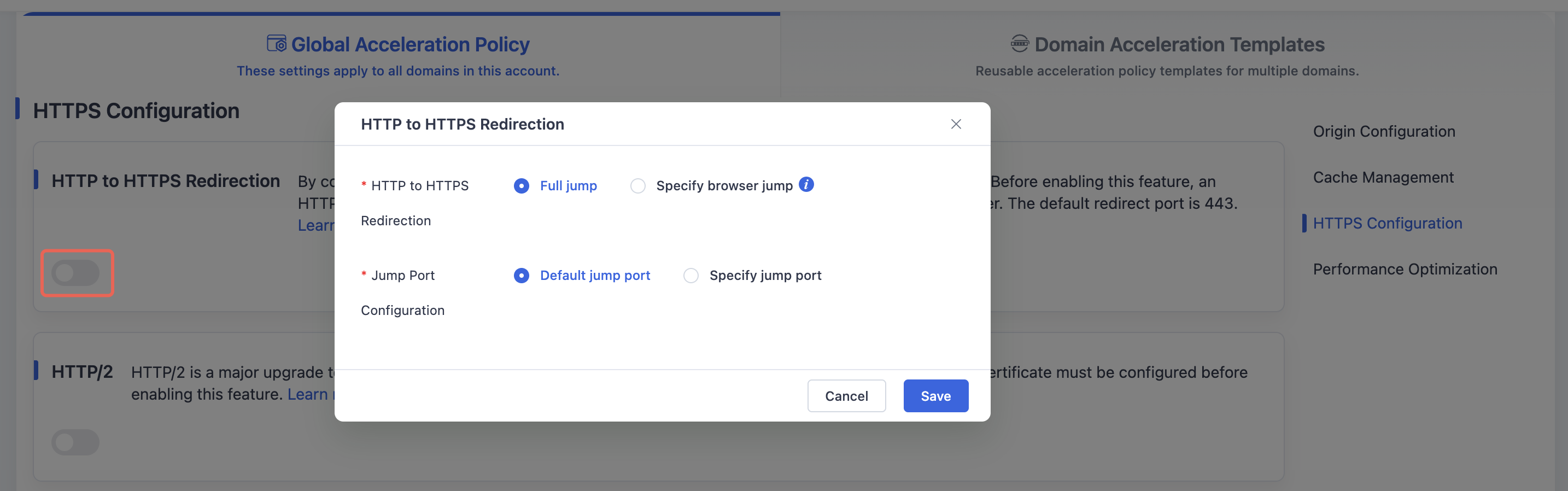
Select the redirection type and target port. Click Save to save the global redirection configuration.
Scenario 2: Domain Acceleration Template Configuration
Log in to the Security CDN Console.
In the left navigation pane, go to Speed & Cache and click Acceleration.
Click Domain Acceleration Template Configuration at the top to access the Template Management page.
Find the template to be updated and click Policy Management in the operations column to enter the configuration page.
Scroll down to the HTTPS - HTTP to HTTPS Redirection module.

Toggle the switch to open the redirection settings dialog.
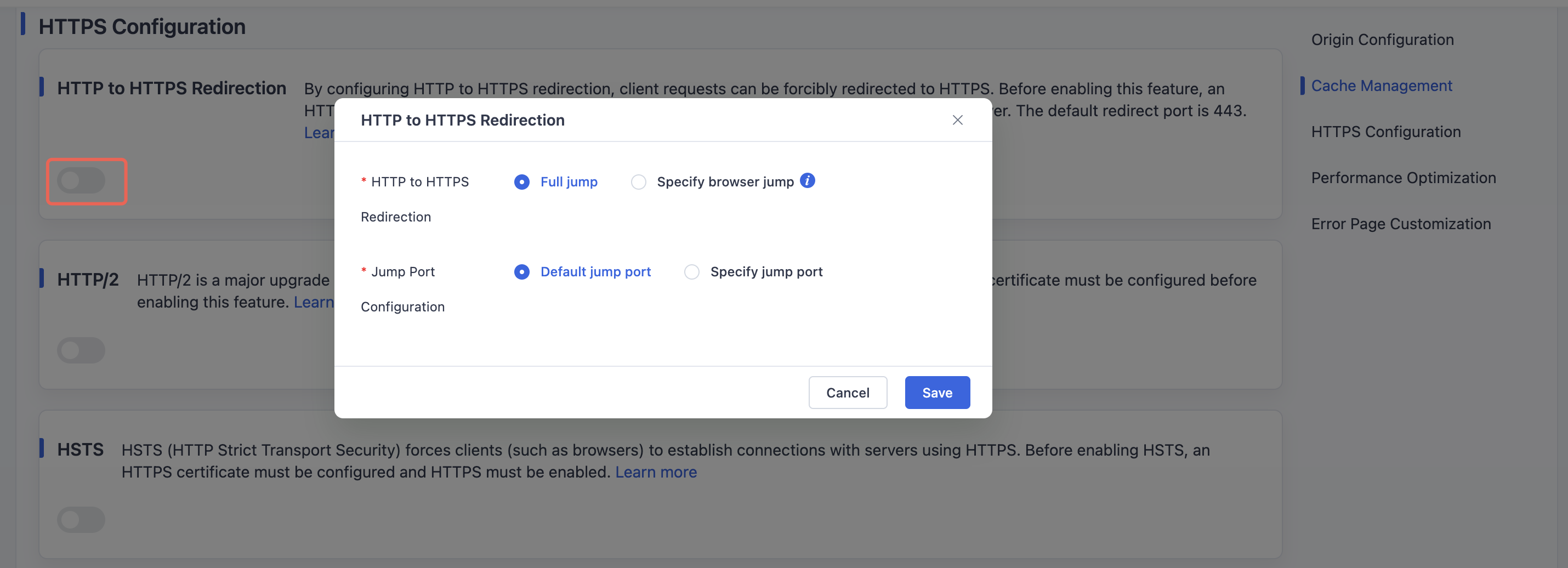
Set the redirection type and target port. Click Save to save the configuration.
Need help? Contact our support team at support@edgenext.com.
Back to documentation home