

Record Management
Record Management
Login to the EdgeNext console,Select ‘Products->Security Acceleration Services->DNS Security’ on the top of home page.Select the corresponding Domain -> Click ‘Administration’ -> Add Records.
1.Add Records
Click on "Administration" to enter the console for website resolution configuration.

On the Administration page, click on "Add Record" to add the required resolution records.
Record Type Description A record Address record, used to specify the IPv4 address of the domain (such as 8.8.8.8). If you need to point the domain to an IP address, you need to add a record AAAA Used to specify the IPv6 address (e.g. ff06:0:0:0:0:0:c3) record corresponding to the host name (or domain) CNAME If you need to point the domain to another domain, and then another domain provides the IP address, you need to add CNAME records MX If you need to set the mailbox so that the mailbox can receive mail, you need to add MX records TXT You can fill in anything here. The length limit is 255. Most TXT records are used for SPF records (anti spam) NS Domain server record. If you need to send the subdomain name to other DNS service providers for resolution, you need to add ns record SRV It records which computer provides which service. The format is: service name, point and protocol type, for example:_ xmpp-server._ tcp 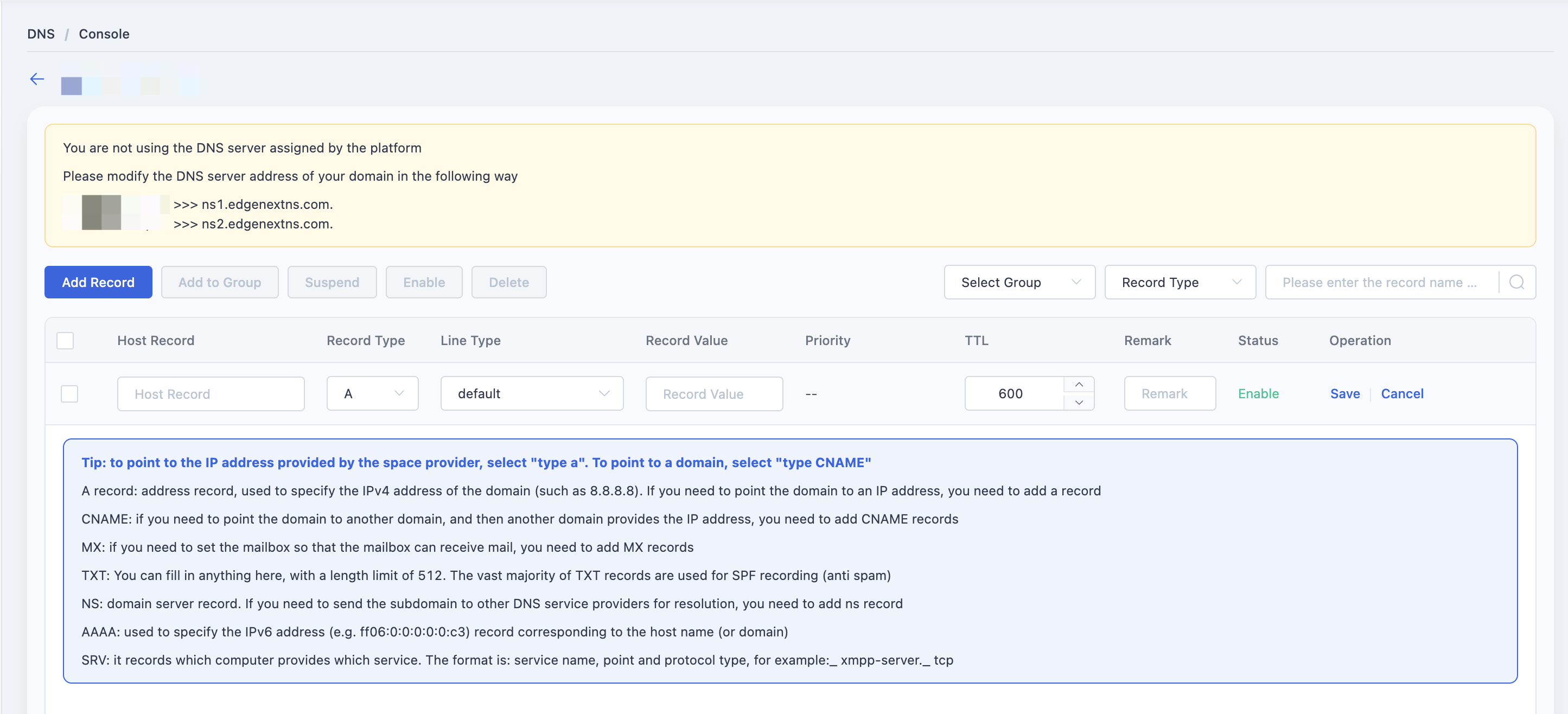
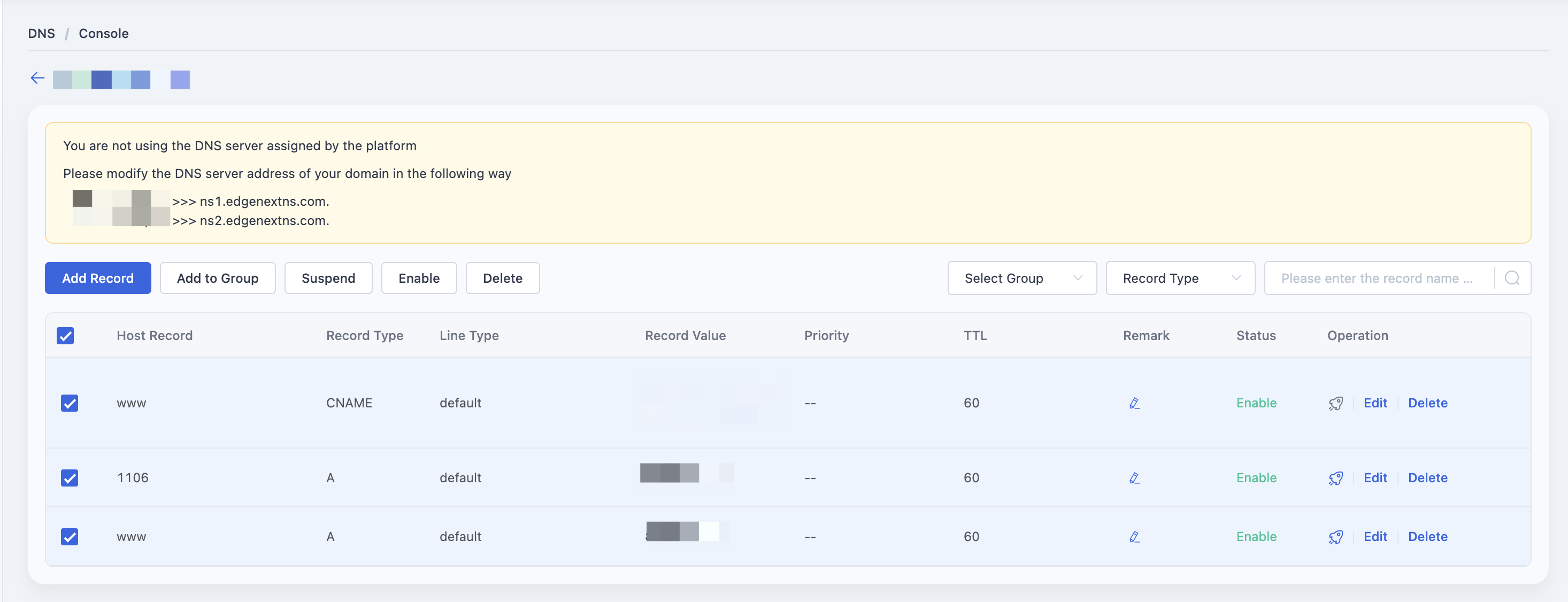
The added parsing record is directly enabled by default, and can be edited, paused, enabled, or deleted on the console.
2.Push the resolution records to the Security CDN
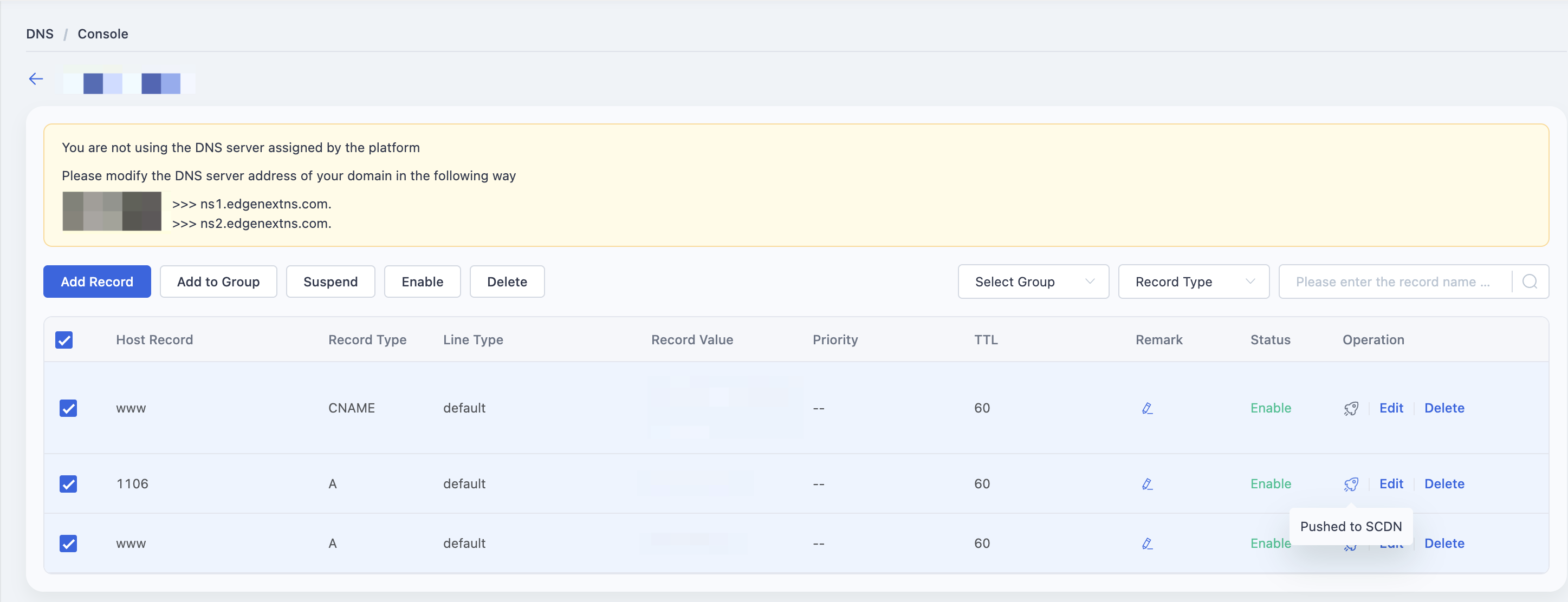
Supports the managed to DNS security push to accelerate domain security CDN, safe speed for hosting domain name.
Note:
Support push A record and CNAME records, click on the push after the system will automatically add the subdomain CDN console in safety, and back to the source of the subdomain Settings, including HTTP and HTTPS protocol next time source to IP or back to the source to the domain name Settings.
When a domain name after the security CDN in NS way open to accelerate, accelerate the host record in DNS security operations will be locked.
3.Add Records in Batch
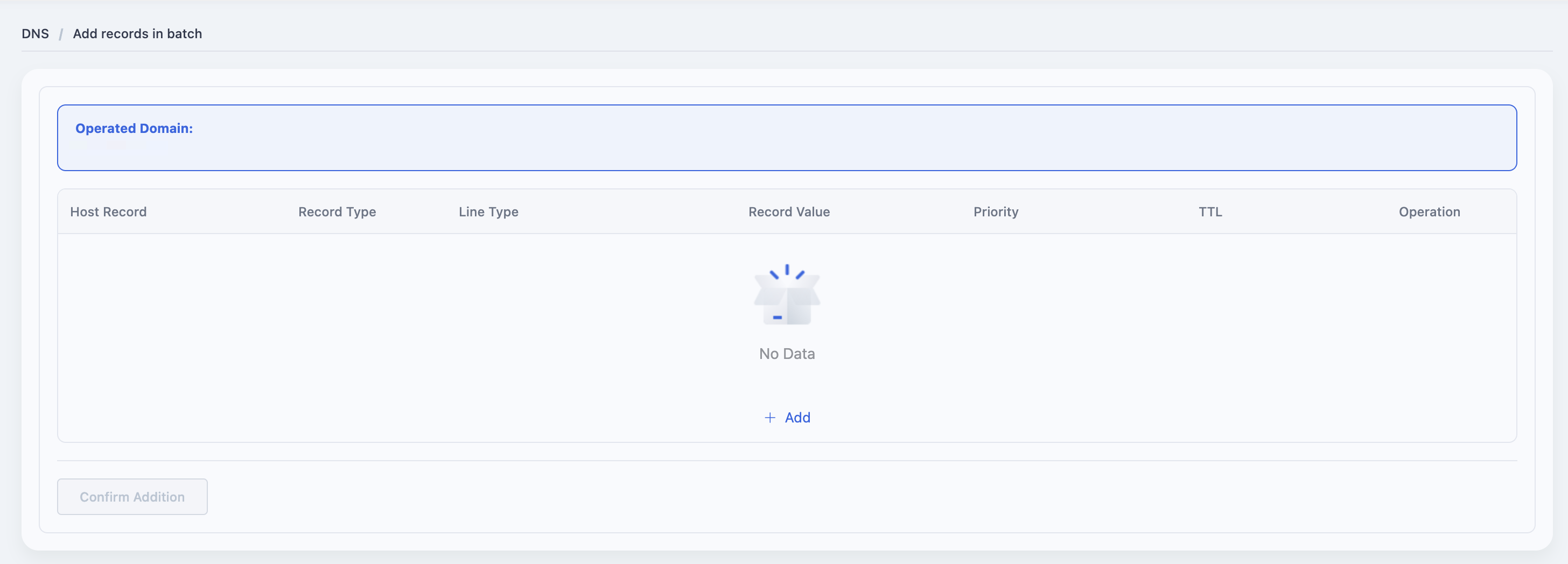
On the DNS Security Acceleration product domain list page, click the "Batch Add Records" button to go to the batch record addition page.
Note: At least one domain must be selected before batch record addition operation is allowed.

Add Record
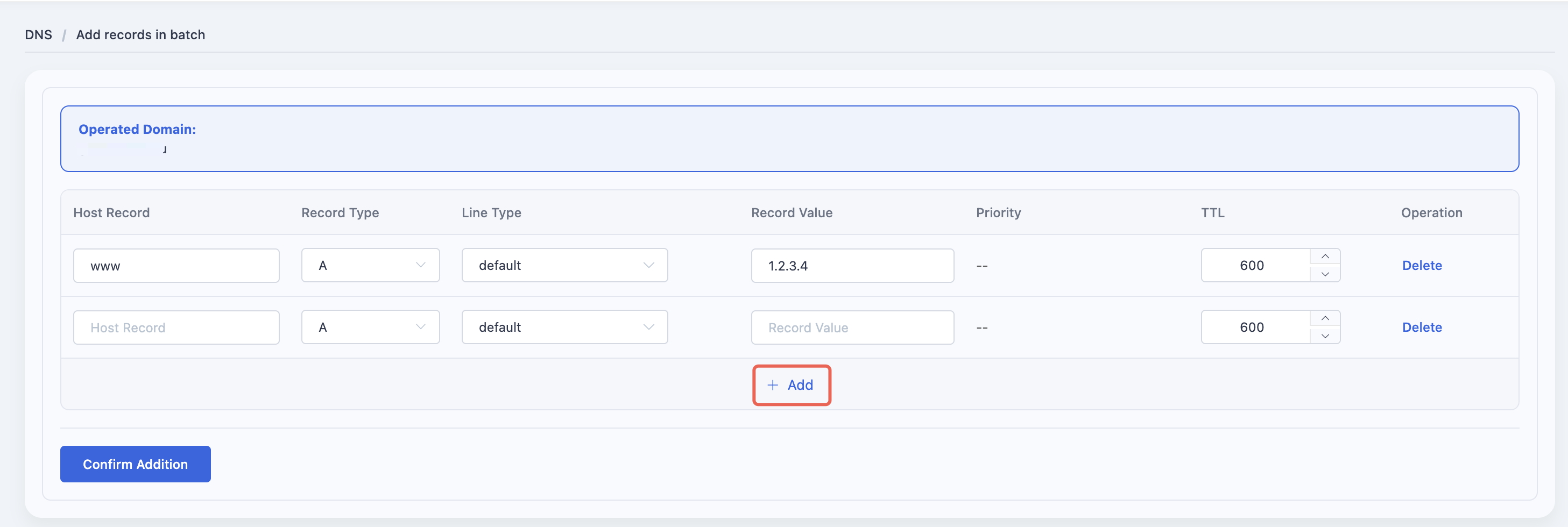
Click the "Add" button, fill in the required record information, and then click the "Add" button again to automatically save the current record information and continue adding the next record.
Delete Record
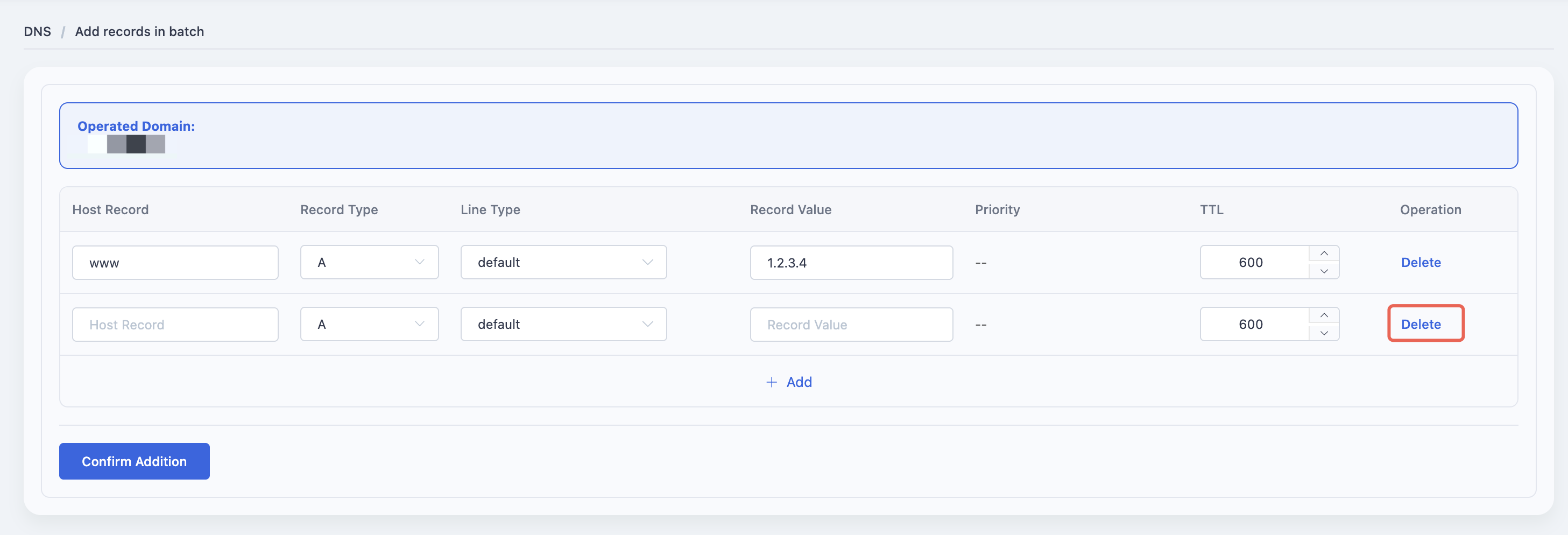
For records that have been filled in, you can click on the input box to edit the record information again, or delete the record by clicking on the "Delete" button.
Submit bulk add tasks
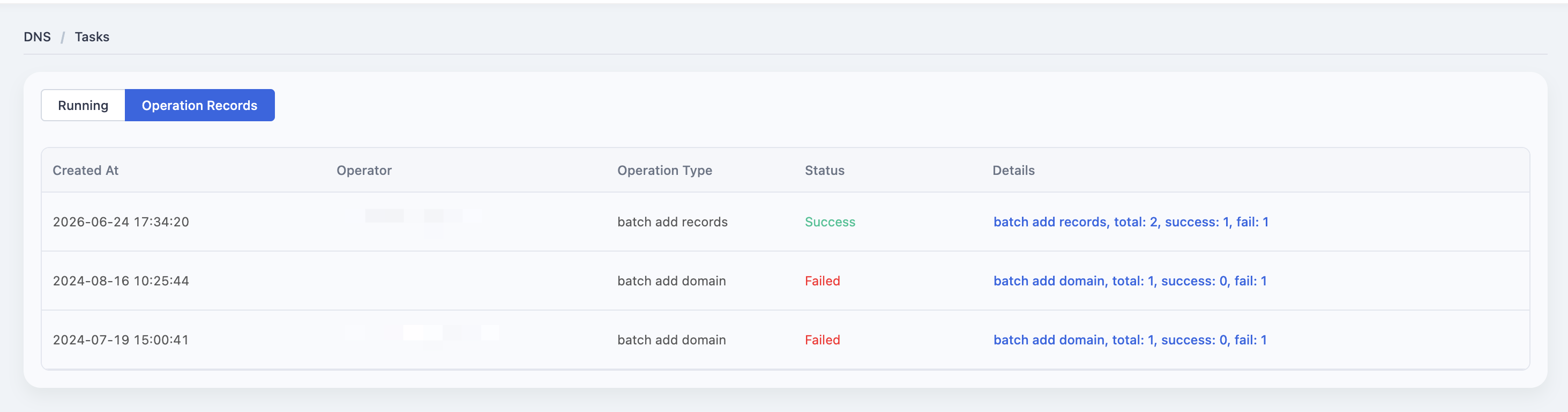
After filling in the required batch adding record information, click [Confirm addition] to submit the adding task; the page will automatically jump to the task list interface and display whether the adding is successful.
4.Import Record
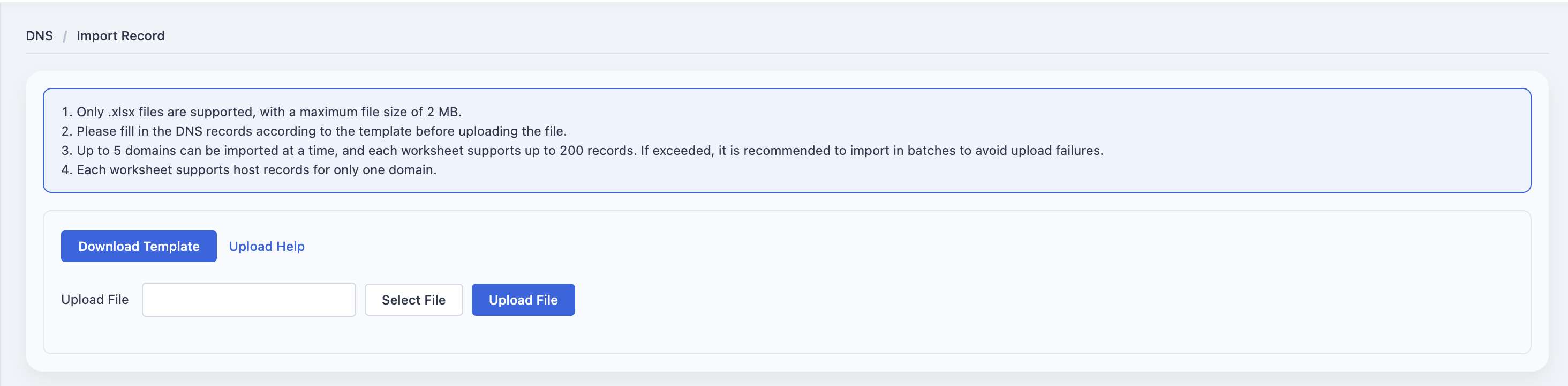
On the DNS product domain list page, click the "Import Records" button to enter the import records page. Submit the domain record file by selecting the file.
Please be aware that if the domain names in the file have not been added to the domain list, they will be automatically added to the list when imported via file upload.
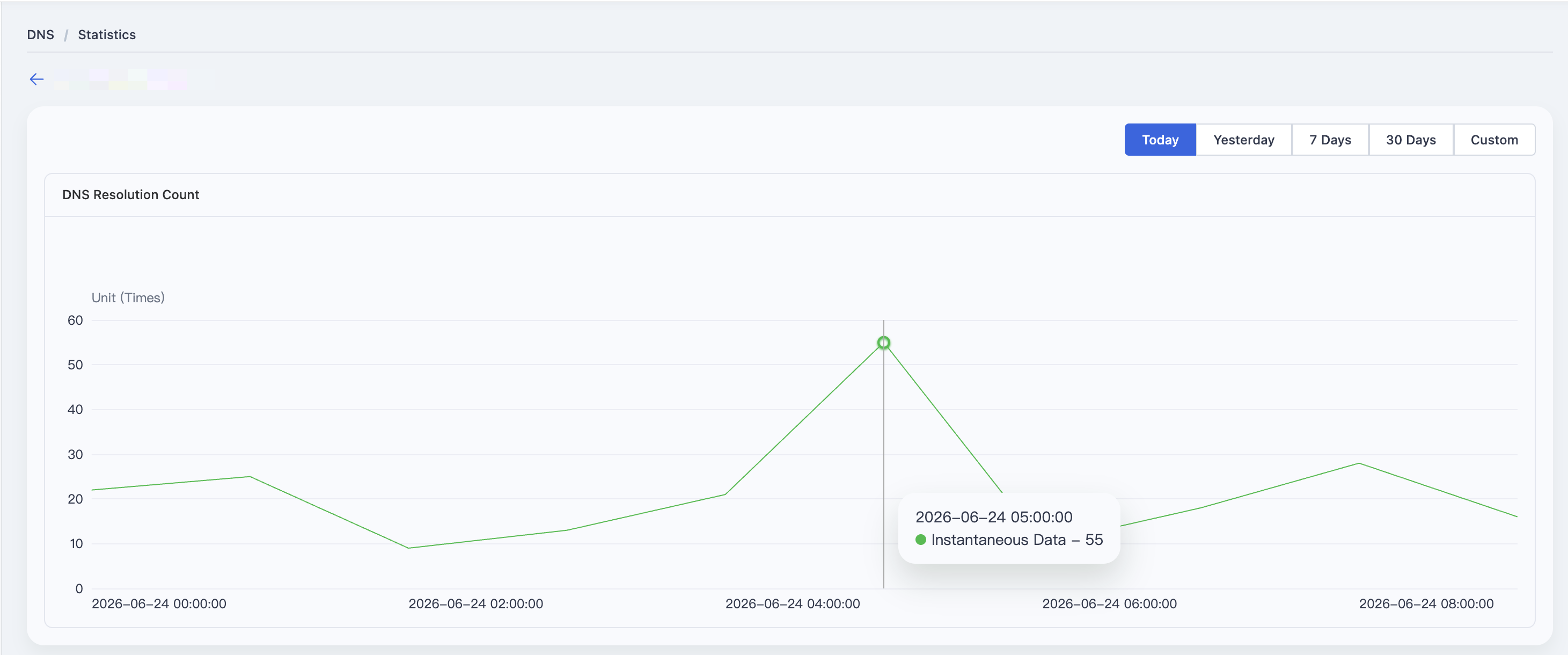
5.Resolution statistics
Click the statistics button to jump to the current domain name resolution statistics page.

Need help? Contact our support team at support@edgenext.com.
Back to documentation home