

Security CDN
Log Download
After your website is integrated with the security protection service, the system automatically records and categorizes multiple types of security logs during access. These logs can be downloaded on demand via the Security CDN console. The available log types include:
- Access Logs
- Record all normal requests with detailed information such as timestamps, source IP addresses, request paths, HTTP status codes, and User-Agent strings. These logs help analyze access behavior and traffic patterns.
- WAF Attack Logs
- Capture all web attack activities detected and blocked by the Web Application Firewall, such as SQL injection, cross-site scripting (XSS), and command execution. Logs include attack types, risk levels, triggered rules, and more.
- Application-layer DDoS Attack Logs
- Record suspected or confirmed application-layer denial-of-service (L7 DDoS) attacks, such as high-frequency requests or slow connection attacks. Logs provide source IP, request patterns, mitigation actions, and other key details.
Notes:
- To ensure the integrity and accuracy of log data, the logging system performs certain processing and aggregation operations when generating downloadable log files. Therefore, the log download feature has an approximate 20-minute data delay, meaning the logs you download are complete log records from 20 minutes prior.
- Log files are retained for 7 days after generation. Once the retention period expires, the files will no longer be available for download. To obtain the logs again, please recreate the download task and save the files promptly.
- When downloading logs for a wildcard domain, request logs from all associated subdomains are included.Requests from subdomains that are not individually onboarded to the CDN are also included in the log statistics.
- All timestamps in log files are recorded in UTC+0 ,For log analysis or troubleshooting, it is recommended to convert timestamps to the appropriate local time zone before comparison.
How to Create a New Log Download Task
Log in to the Security CDN Console.
In the left-hand navigation panel, go to Log > Log Download to enter the log download page.
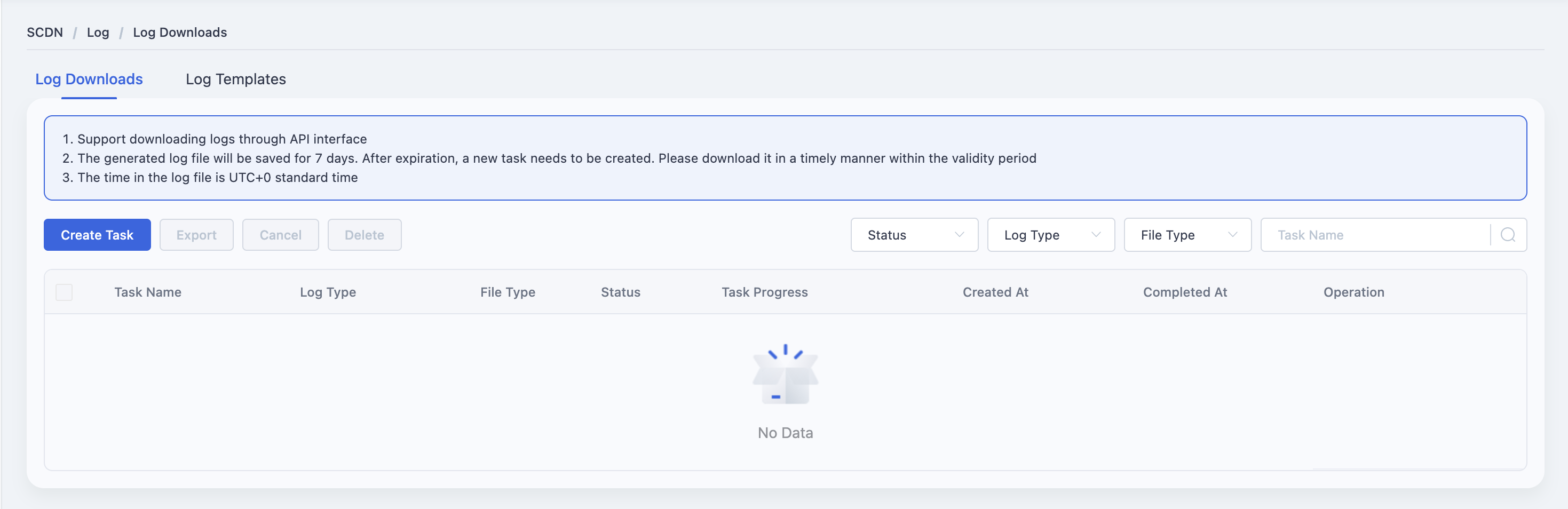
Click the Add Task button to open the log download task creation window.
Fill in the required fields:
- Task Name
- Domain(s) to download logs for
- Log Type (Access, WAF Attack, Application-layer DDoS)
- Time Range
- File Format (e.g., CSV, JSON)
- Language (e.g., English, Chinese)
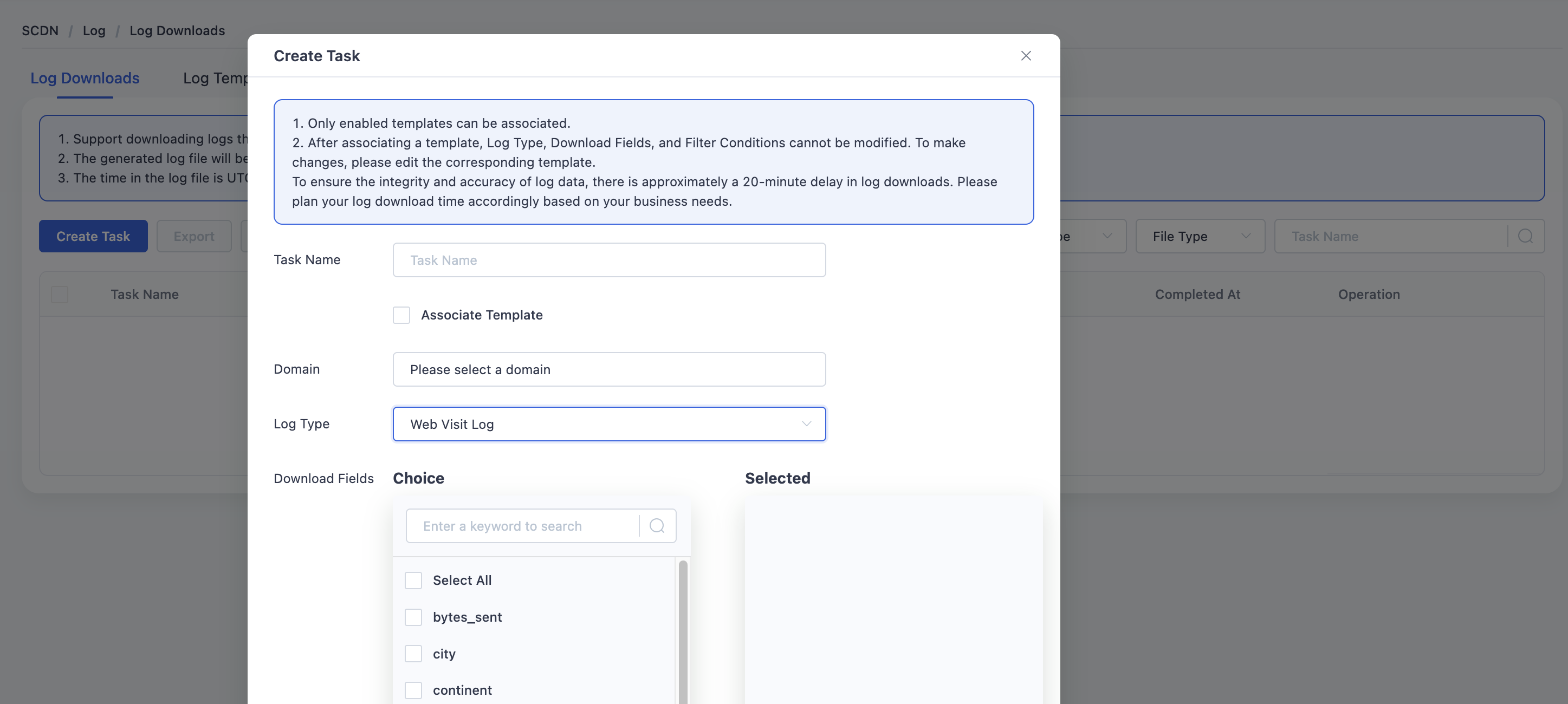
Click Save to complete the task setup.
Once the task is processed, click the Download button in the corresponding row to obtain the log file.
Need help? Contact our support team at support@edgenext.com.
Back to documentation home